
Docs
Pixel Flow user manual and best practices
Find scanning, filtering, image details, library, export, account, and industry workflow guidance by task.
Feedback and Support: Describe the Problem So It Can Be Reproduced
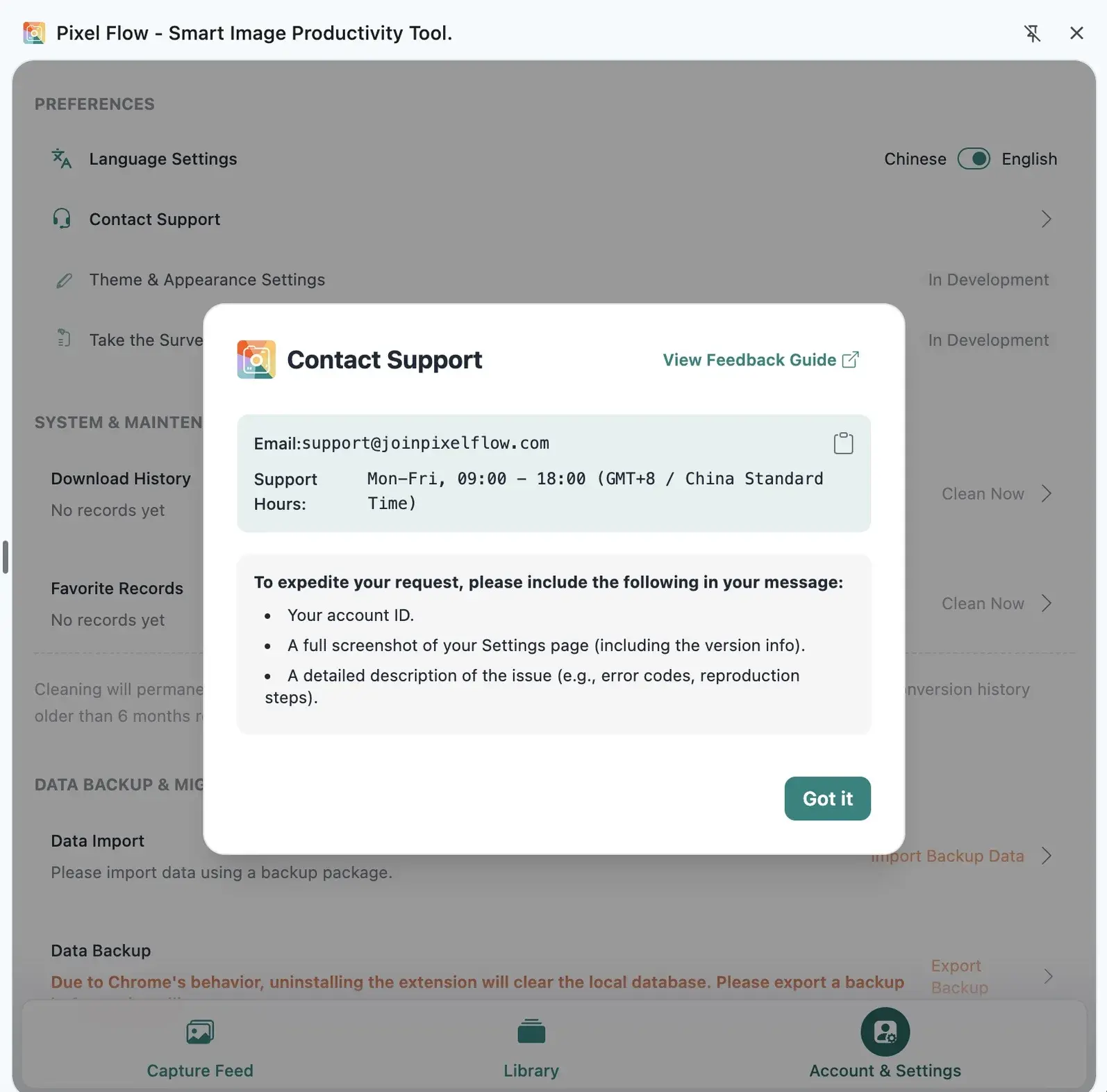
If you run into issues with capture, downloads, sign-in, PRO benefits, data backup, or image analysis, and you cannot troubleshoot them yourself or confirm whether they are Pixel Flow issues, you are welcome to contact support for a clear answer. When you contact support, first organize the symptoms, action path, and screenshots so a developer can reproduce the issue; this greatly improves investigation and reply speed.
Basic Troubleshooting First
Before contacting support, do a general check first:
- Confirm whether the issue reproduces consistently: refresh the page or reopen Pixel Flow, then repeat the same action.
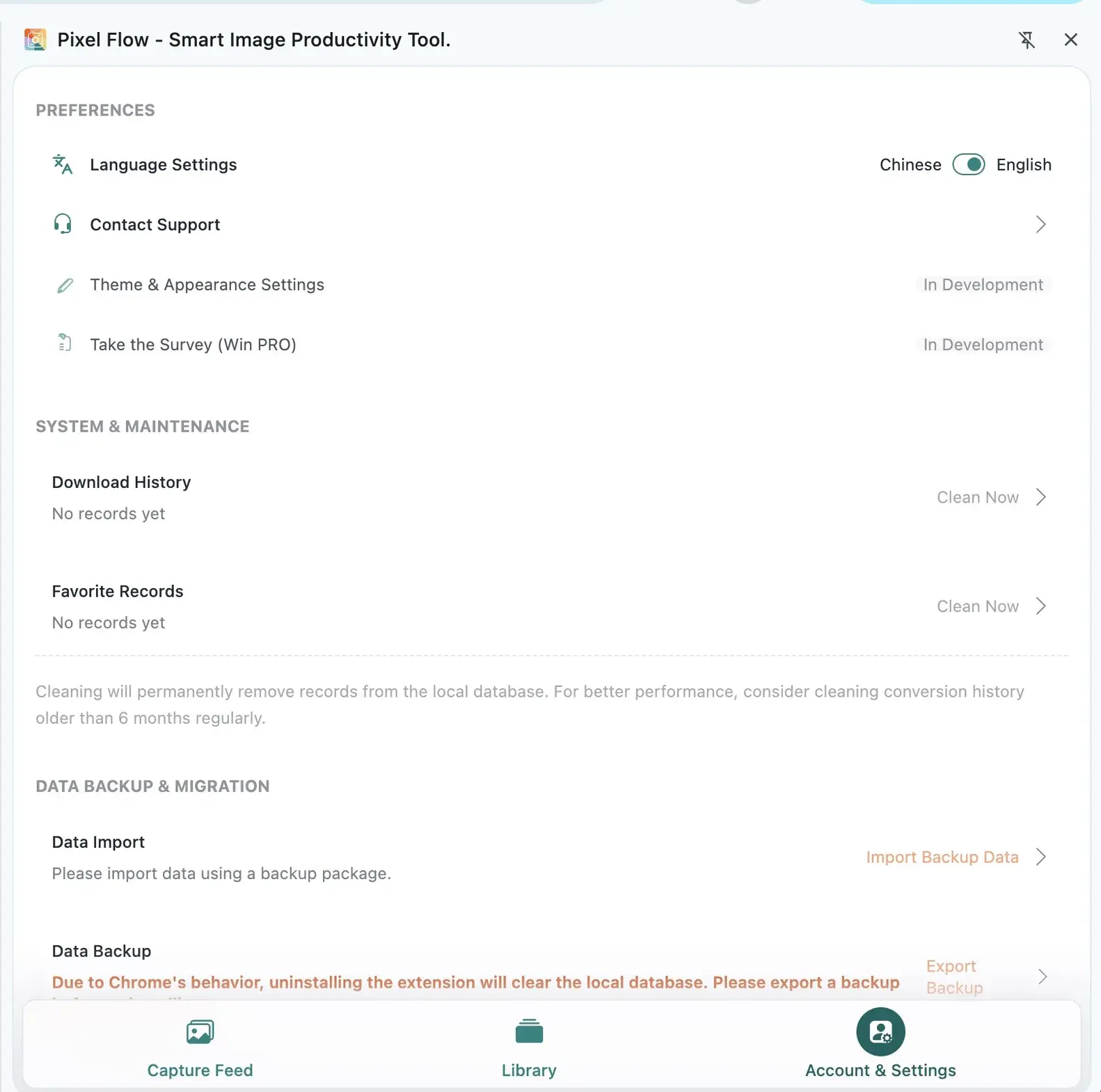
- Confirm where the issue happens: Capture Feed, Image Details, Library, Download History, Account & Settings, or backup import.
- Confirm account and environment status: current signed-in account, PRO status, Chrome version, Pixel Flow version, network, and download permission.
- Write the action path in 2 to 5 steps. A sequence of screenshots or a screen recording is also fine, as long as the developer can see what happened from your email. For example: “open page → rescan → select 3 images → batch download.” Avoid only writing “doesn’t work” or “failed.”
- If the issue still reproduces, use the table below to find the relevant feature area. Feature docs that are already published can be opened directly; feature docs without links will be added after they are confirmed for release. If it still cannot be resolved, copy the feedback template below and contact support.
| Issue scenario | Start here | Prepare before contacting support |
|---|---|---|
| Images are missing, detected count is wrong, or webpage images are not recognized | Rescan and handle missing images | Page URL, visible image count, Pixel Flow scan result screenshot, whether you tried rescanning or deep parsing from the context menu |
| Batch download fails, files are missing from the package, or download results look wrong | Batch download webpage images / View download records | Download method, download-history screenshot, which files are missing from the package, whether it only happens on one website |
| Image details, format, dimensions, source, AI fingerprint, or AIGC parameters look wrong | View basic info / AI fingerprint detection / AIGC parameters | Image Details screenshot, image format, original source, expected information, and actual result |
| Sign-in, binding, PRO status, redemption code, or benefit records look wrong | Sign-in methods / View PRO status and records / Redeem PRO benefits with a code | Sign-in email, account-status screenshot, order or redemption time, PRO records screenshot |
| Backup export, backup import, data recovery, or local records look wrong | Data Backup and Import / Data Safety, Backup, and Cleanup | Backup package source, import account, failure screenshot, whether files inside the backup package were modified |
| Tags, favorites, library organization, or batch actions behave unexpectedly | Tag management / Batch favorite to library | Action path, library or tag screenshot, current account, whether you reached a Free or PRO limit |
| Language, filename format, WebP/AVIF conversion, or source-record settings do not match expectations | Account & Settings / Filename format / WebP/AVIF batch conversion settings | Settings-page screenshot, current setting, actual result after download or export |
The table above first routes the issue to the relevant feature page because different DOM structures, CSS rendering, cross-origin rules, sign-in requirements, or anti-bot rules can affect capture and source records. After you finish the basic checks for that scenario, specific reproduction steps make it easier for the developer to tell whether the issue comes from page compatibility, a browser API limitation, account status, or Pixel Flow feature logic.
Support Feedback Template
Issue type: Capture / Download / Login / PRO / Data Backup / Image Details / Other
Affected page URL:
Steps to reproduce:
Expected result:
Actual result:
Can it be reproduced consistently:
Browser version:
Pixel Flow version:
Signed-in account:
Screenshot or screen recording:
Additional notes:
Do not send passwords, verification codes, bank card numbers, or full payment card details. For payment and subscription issues, provide the order number, transaction time, sign-in email, and payment status screenshot.
FAQ
Q: How long until I get a reply?
Support will try to handle and reply within 48 hours. If the report includes enough information to reproduce the issue, the developer can usually investigate faster. If the issue is more complex, such as a specific website compatibility problem, browser limitation, account review, or data recovery case, the developer will still try to reply within 48 hours with the current complexity assessment, initial findings, and a preliminary solution path.
Q: Which languages can I use?
Chinese and English are both supported. You may send other languages, but the developer will need to use third-party translation tools, which may introduce translation errors. To reduce misunderstandings, please use Chinese or English when possible, and keep button names, error messages, screenshots, or screen recordings visible.
Q: What if my screenshots contain sensitive information?
You can redact passwords, verification codes, client privacy, and payment information, but keep version numbers, error messages, operation entry points, and page status visible.