
Docs
Pixel Flow user manual and best practices
Find scanning, filtering, image details, library, export, account, and industry workflow guidance by task.
Pixel Flow Data Safety, Backup, and Cleanup Guide
This document explains Pixel Flow’s data safety boundary: which data is mainly stored in the current browser, what account sign-in protects, what a backup package can restore, what cleanup deletes, and how to reduce data loss risk when working on client projects, archiving assets, delivering to a team, or switching devices.
If you have favorited images, organized tags, downloaded asset packages, or adjusted filename and export preferences, treat these as local working records. Before any important operation, always export a backup first.
Without a backup, data removed by the browser or manually cleaned by you usually cannot be recovered.
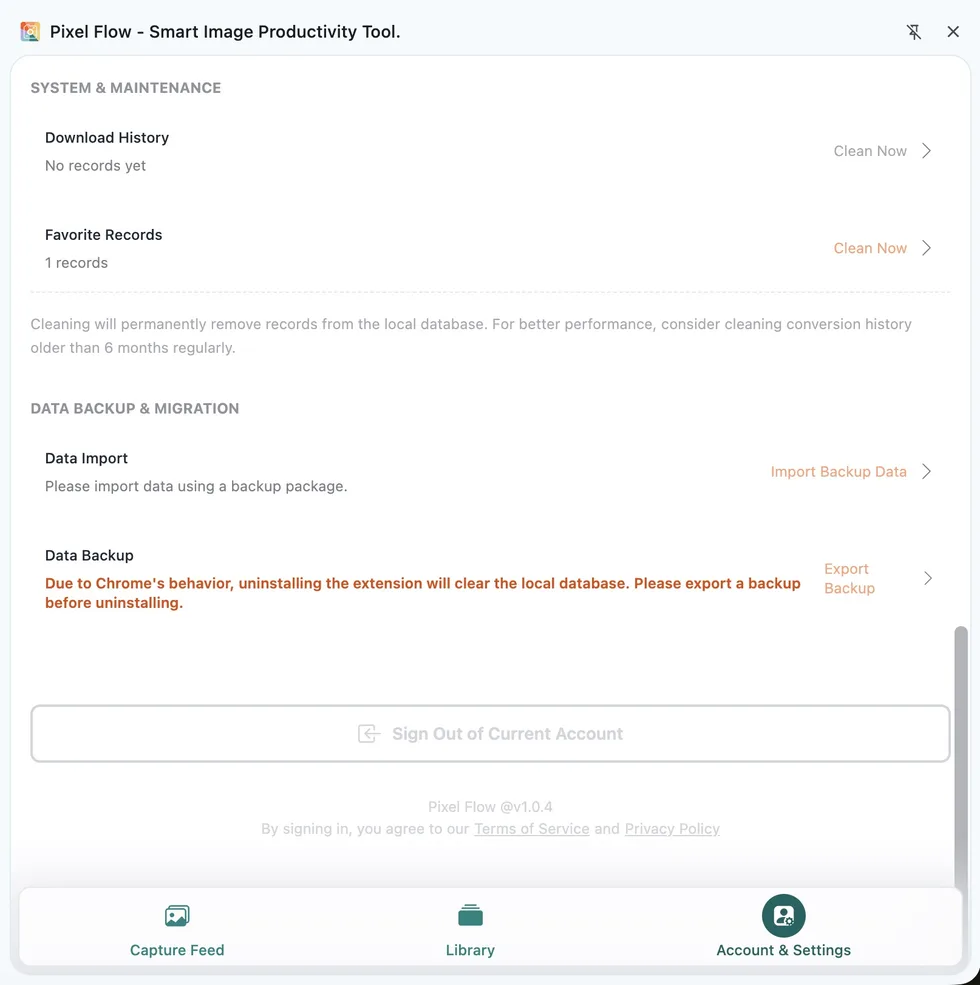
High-Risk Points in the Data Lifecycle
| What you are about to do | What may happen | What you should do |
|---|---|---|
| Uninstall Pixel Flow | The browser may clear the extension’s local database. Your library, tags, download history, and local settings may become unrecoverable. | Export a backup package before uninstalling, and confirm that the file has been saved to your computer. |
| Clear browser extension data, reset the browser profile, or reinstall the browser | Extension data in the current browser environment may be deleted. | Back up first, then change browser data. |
| Switch computers or browser profiles | The new environment will not see local records from the old environment. | Export a backup in the old environment, then sign in with the same account and import it in the new environment. |
| Clean download history | Local download records in the selected time range will be deleted. | If you still need to trace sources, packages, or delivery records, back up first or export the necessary list. |
| Clean favorite records | Local favorite records in the selected time range will be deleted, and the library list will become smaller. | Back up important assets first. If you are not sure whether you still need them, do not choose “clear all data” directly. |
| Delete a custom tag | The tag definition will be deleted, and that tag will also be removed from favorited images. | Confirm that the tag is no longer needed for project organization. |
| Sign out or unbind an account | This usually does not actively delete the local database, but it affects account status, entitlement checks, and the currently visible data space. | If important records exist before or after account switching, back up the current environment first. |
If you only want to find the exact buttons, go directly to Data Backup and Import or Data Cleanup.
How Accounts, Local Data, and Backup Packages Relate
Signing in helps Pixel Flow identify entitlements, purchase records, referral rewards, and the current user space, but it does not mean all asset records are automatically synced.
| What you see | What it mainly solves | Do not mistake it for |
|---|---|---|
| Signed-in account | Identifies entitlements, purchase records, referral rewards, and the current user space | Automatic sync for all asset records |
| Browser local data | Stores the library, download history, tags, and common settings | Data that always remains after uninstalling or cleanup |
| Backup package | Migrates or restores a copy of local working data | An image license file or automatic cloud backup |
How To Think About Extension Security Risk
Browser extensions work inside the browser environment, so you should judge risk from three angles: installation source, permission prompts, and data handling. For Pixel Flow users, the most important practices are:
- Install Pixel Flow only from official instructions or the Chrome Web Store.
- Read the browser permission prompt carefully when installing or updating.
- Do not import backup packages sent by strangers. Backup packages should come from your own devices or trusted sources.
- If you plan to clear browser data, uninstall the extension, or switch devices, export a backup package first.
- A backup package may contain your asset organization records, source clues, and preferences. Store it as carefully as project material.
Browser extensions commonly use browser-provided local storage capabilities to save state and data. Chrome’s official documentation states that an extension’s local storage area is local to the machine and is cleared when the extension is removed. You can refer to Chrome Extensions’ Storage API documentation for the technical standard. Pixel Flow also uses browser local database capabilities for larger data such as the library and download history.
Pixel Flow’s Data Safety Boundary
If the following data is still useful to you, export a backup before high-risk operations:
| Data type | Why it is worth keeping | Related page |
|---|---|---|
| Favorite records | Preserve images you organized, source clues, and image data | Library and Export |
| Download history | Helps you review download time, source, package, and delivery records | Download History |
| Custom tags | Affects how efficiently you can filter, group, and organize assets later | Image Tag Management |
| Common settings | Includes language, capture thresholds, filename rules, format conversion, and source clue export preferences | Account and Settings |
A backup package does not grant you authorization on behalf of the source website, and it does not change the original webpage content. For publishing, commercial use, client delivery, or training data, you still need to separately confirm the image source and usage rights. For a fuller boundary explanation, see Responsible Use of Pixel Flow.
Backup: Keep a Portable Copy of Local Working Data
- Open the Pixel Flow side panel.
- Go to Account and Settings.
- Find Data Backup and Migration.
- Click Export Backup next to Data Backup.
- After the browser download finishes, store the backup package somewhere you can find later, such as a project folder, external drive, or a cloud drive you trust.
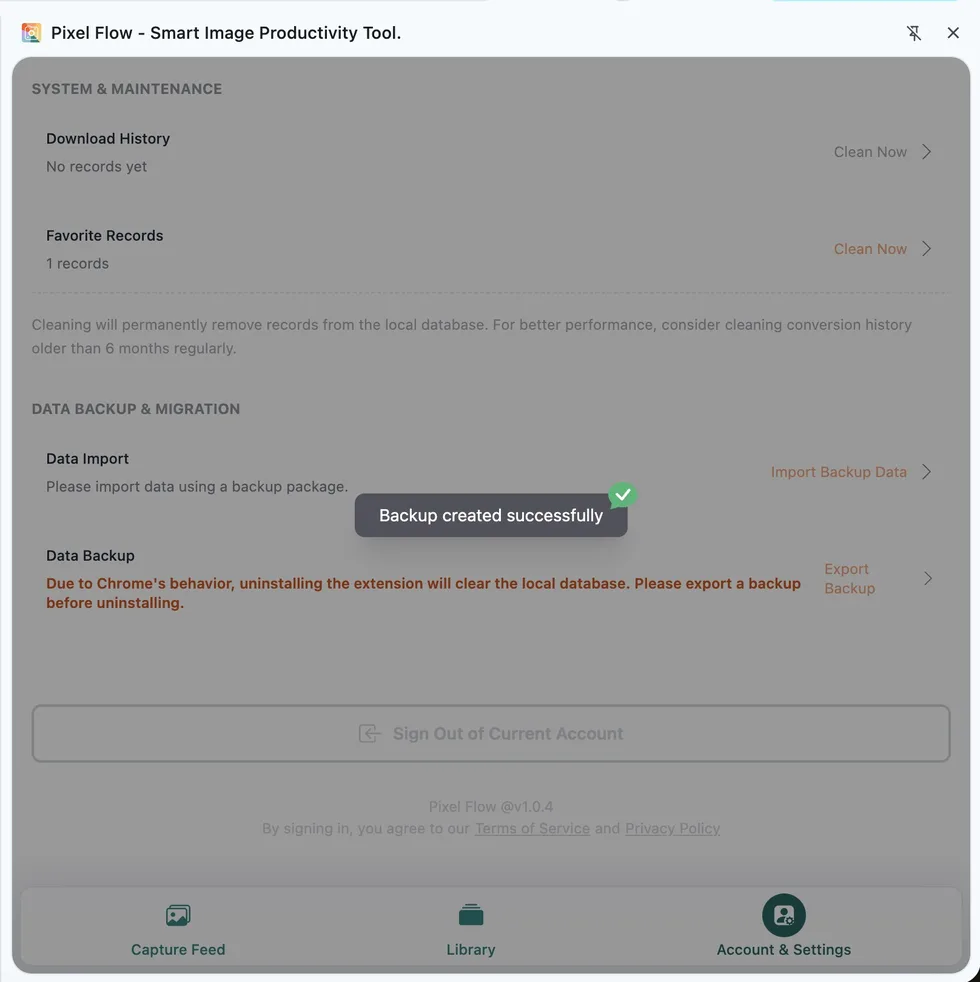
The backup file is usually a compressed package. It is used to save Pixel Flow local working data, such as favorite records, download history, tags, and preference settings. Keep and import the original backup package exported by Pixel Flow. Do not forward it to untrusted people.
Import: Restore a Backup into the Current Environment
- Install and open Pixel Flow in the new environment.
- Sign in with the same account used when exporting the backup. If you are not currently signed in, you cannot import a backup package.
- Go to Account and Settings.
- In Data Backup and Migration, click Data Import.
- Select the backup package you exported earlier.
- Click Confirm Import, keep the side panel open, and wait for the success message.
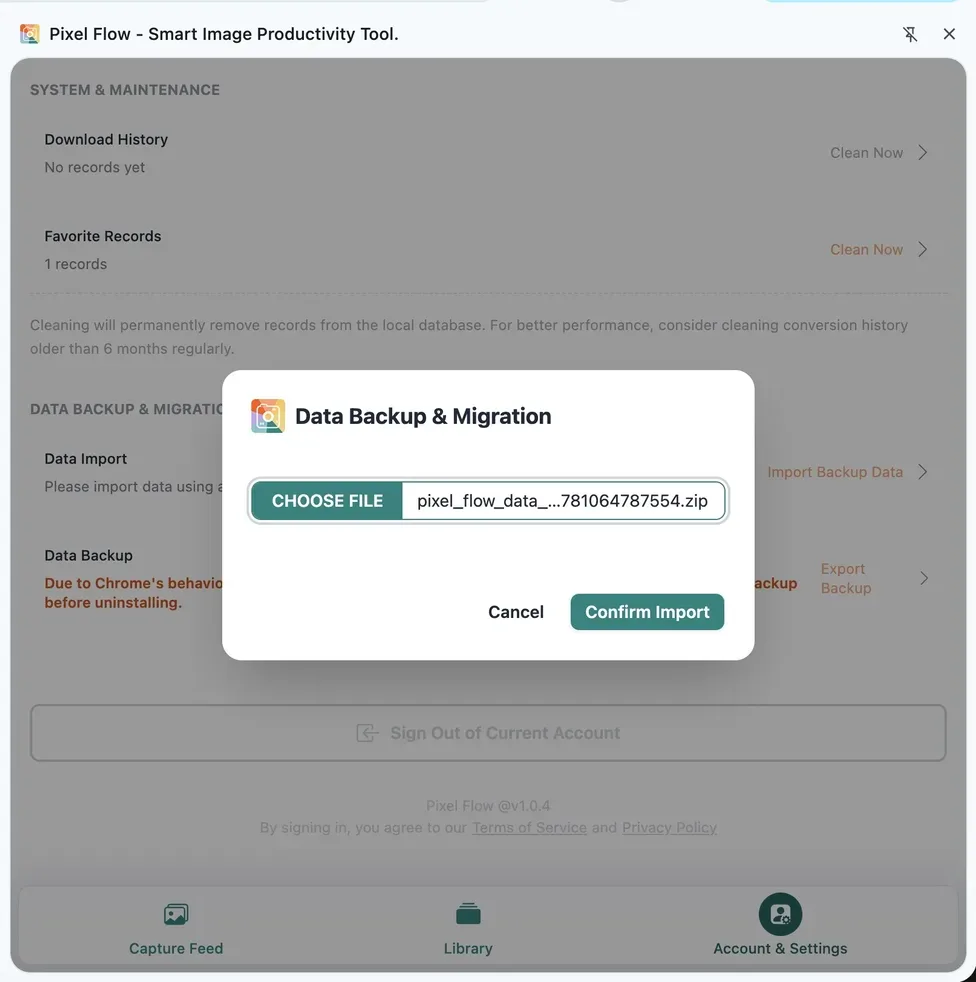
Import is not “clear current data and overwrite restore.” Pixel Flow restores backup content in the current environment and handles it together with the current account status and existing records. After import finishes, return to the library, download history, and tag management to check whether key records have been restored.
If you need exact operation steps, read Data Backup and Import.
Cleanup: Before Deleting Records, Confirm Whether You Still Need Them
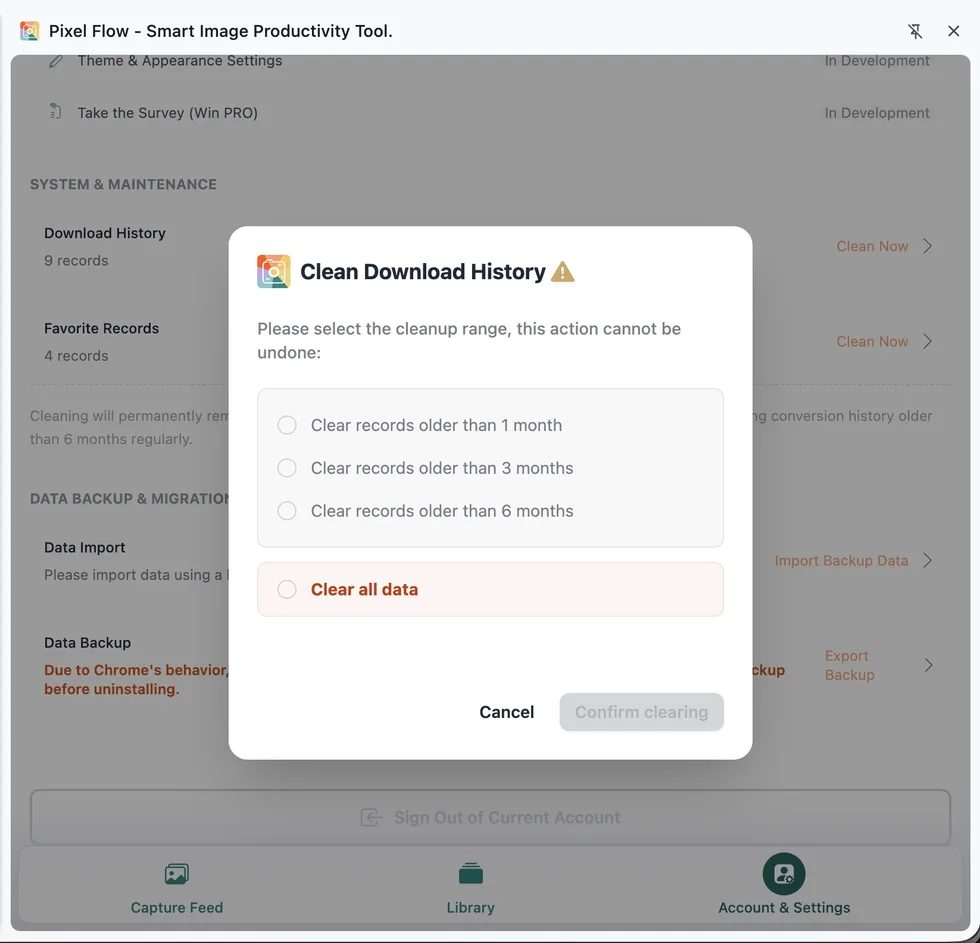
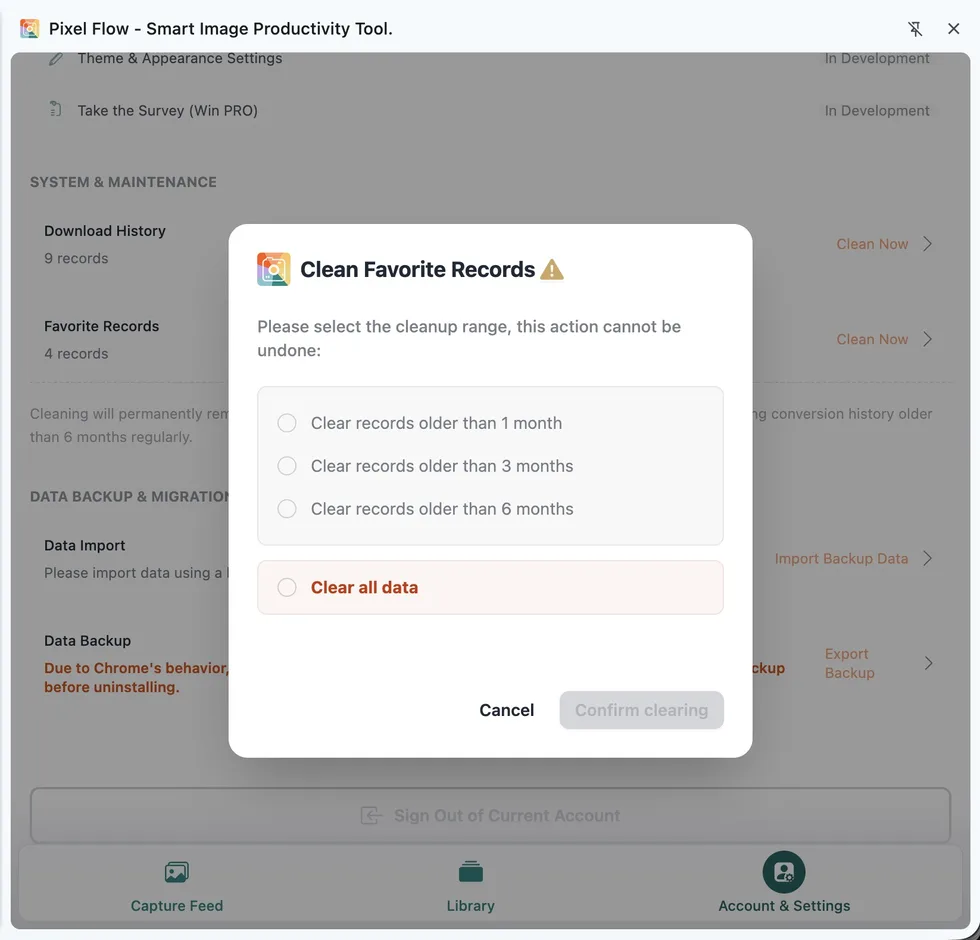
The data cleanup entries in Settings are currently mainly divided into download history and favorite records. They delete records from Pixel Flow’s local database. They do not delete image files from your computer’s Downloads folder, desktop, or project folders, and they do not delete original images from webpages. Once records are deleted, they usually cannot be recovered, so always export a data backup before deleting records.
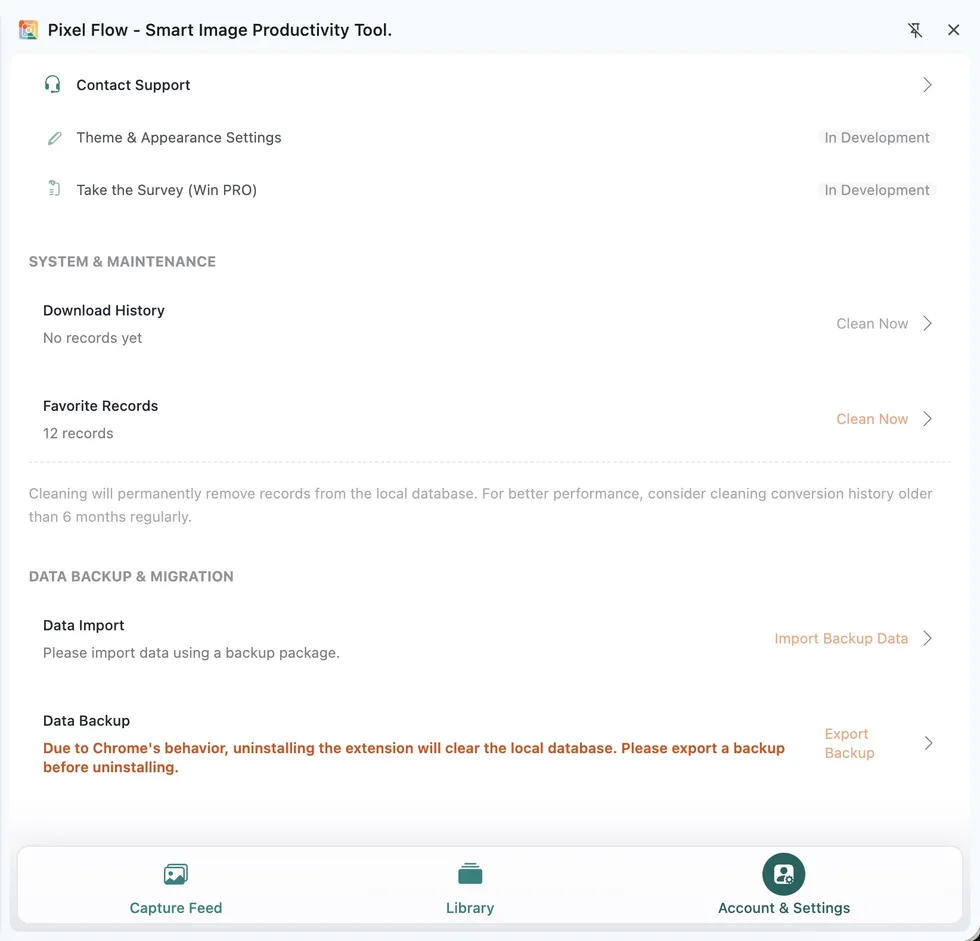
Clean Download History
Cleaning download history deletes local download records in the selected time range, but it does not affect images or ZIP packages that have already been downloaded to your computer folders, desktop, or project folders.
Clean Favorite Records
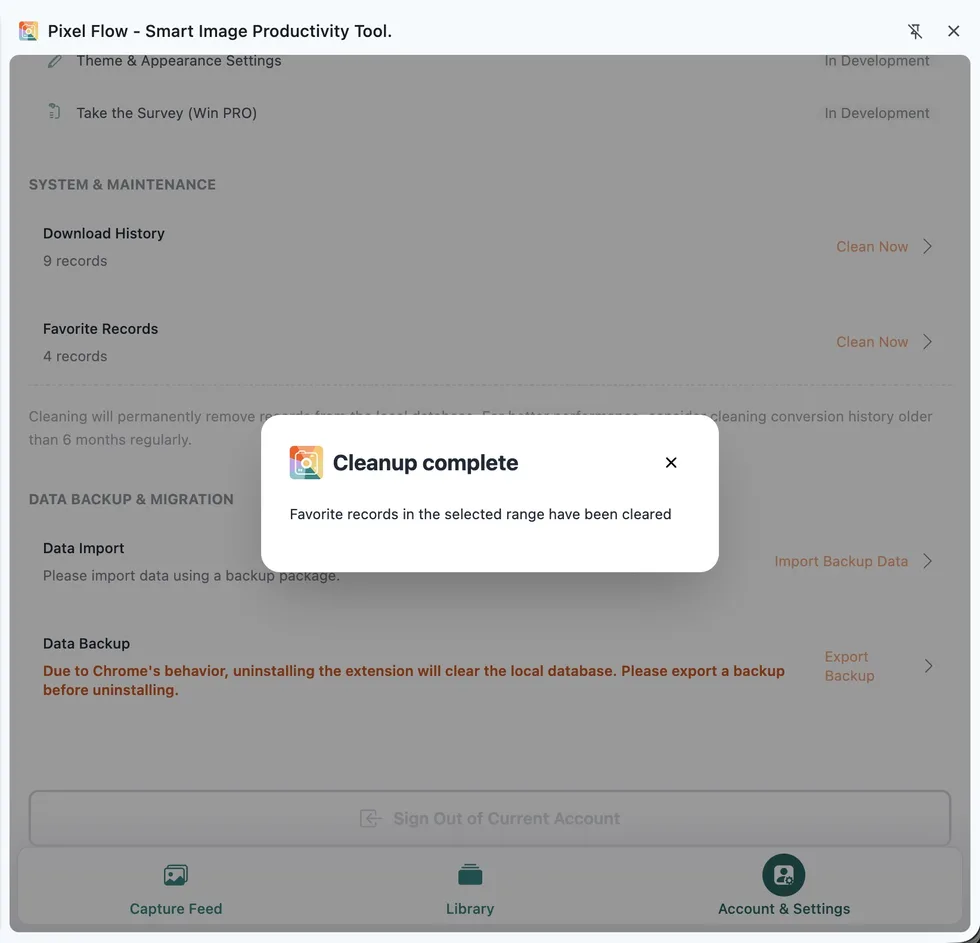
Cleaning favorite records affects the library. After you confirm deletion, local favorite records in the selected time range will be deleted, and related tag statistics will refresh. It does not change original webpage images, and it does not affect images or ZIP packages already downloaded to your computer folders.
Data Safety Checklist
Before uninstalling, reinstalling, switching devices, clearing browser data, or cleaning Pixel Flow records, check these items:
- You have exported the latest backup package.
- You can find the newly exported backup package on your computer.
- The backup package has been saved outside the browser data directory.
- The current signed-in account is the account you plan to keep using.
- If you plan to import another backup and the current environment also has important data, export another backup for the current environment first.
- If you plan to clean records, you have confirmed whether you are cleaning download history or favorite records.
- If the records involve client delivery, asset source tracing, copyright review, or training data organization, you have first exported the necessary list or kept screenshots.
FAQ
What format is the backup package?
It is usually a compressed package exported by Pixel Flow. You only need to store it carefully and choose it from Data Import when you need to restore data.
After signing in, will the library automatically sync to another computer?
No. Pixel Flow is a local-data-first, privacy-first extension. It does not sync your library, tags, and download history to the cloud without your action, so it will not automatically sync them to another device. When switching devices, export a backup from the old device first, then import it on the new device.
Will importing a backup overwrite my current data?
It will not directly clear and overwrite current data, but it may merge or discard data according to the signed-in user’s entitlement status. Before importing, if the current environment also has important data, it is safer to export a current backup first. After importing, confirm whether the data looks correct. If there is a problem, contact support.
Why are some favorites or tags missing after import?
This is usually because the current account entitlement status caused data outside the allowed range to be discarded during import. You can first read Restore Backup Data.
Does cleaning download history delete image files from my computer?
No. It deletes download records from Pixel Flow’s local database. It does not delete image files already saved to your system Downloads folder, desktop, or project folders.
Does cleaning favorite records delete original webpage images?
No. It only affects local favorite records in Pixel Flow’s current data space. It does not modify the original webpage and does not delete images from the webpage server.
How often should I back up?
If you only use Pixel Flow occasionally, back up before uninstalling, switching devices, reinstalling, or cleaning. If you use Pixel Flow for client projects, asset archives, team delivery, or dataset organization, back up by project stage, such as after starting project organization, before delivery, and before cleaning old records.