
Docs
Pixel Flow user manual and best practices
Find scanning, filtering, image details, library, export, account, and industry workflow guidance by task.
Check Whether My PRO Access Is Active
After you purchase, redeem a code, bind an account, or use an invite code, the important questions are usually simple: is my account PRO now, when does it expire, and did this new time actually land on my account?
Start from the top of Account & Settings. This guide also explains what to check before purchase, where free PRO time may come from, how to verify invite rewards, and what to do if the status does not update.
Start From Account & Settings
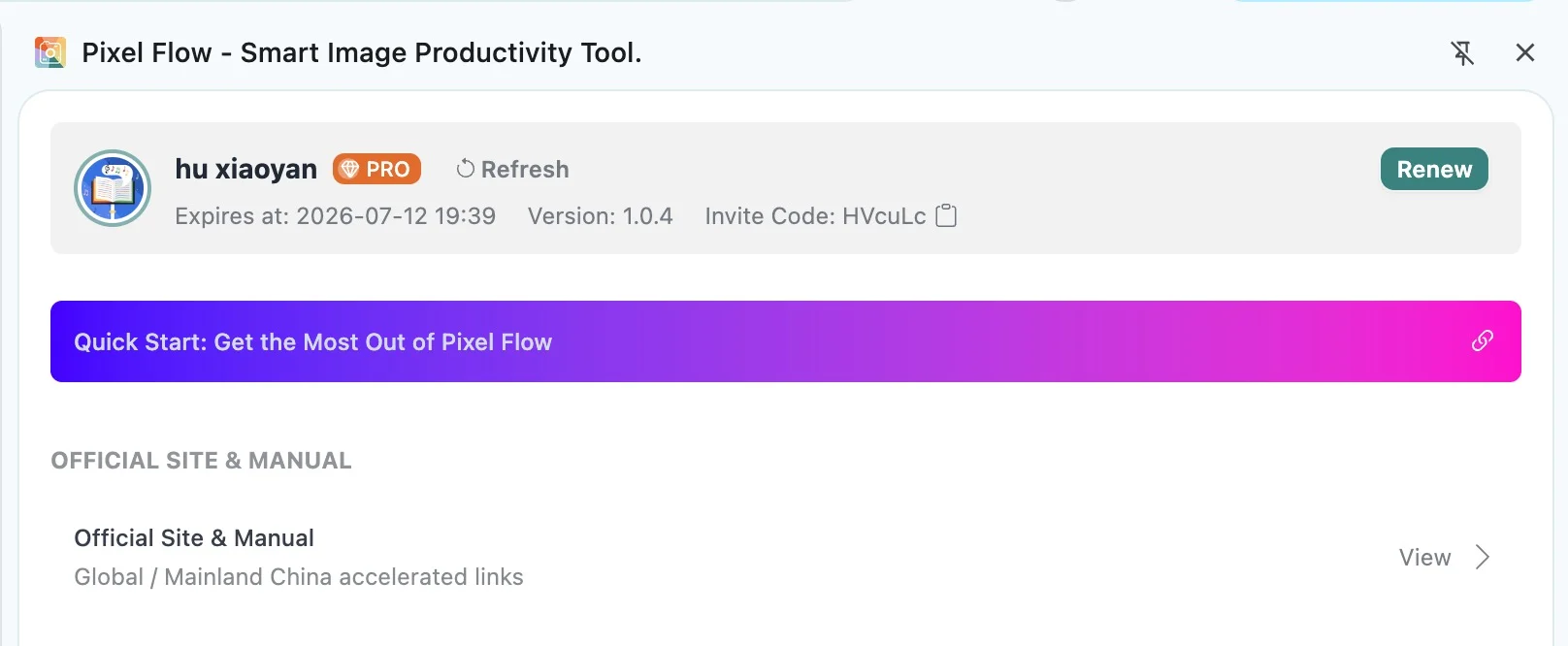
Open the Pixel Flow side panel and go to Account & Settings at the bottom. After you sign in, the top account area shows your avatar, account name, PRO badge, expiration time, version number, invite code, plus the Refresh and Renew or Upgrade entry.
Use this area to read your current status:
| What you see | What it means |
|---|---|
| A PRO badge next to your account | The current account is within an active PRO period. |
| An expiration time | This is when the current PRO access ends. Click the time to open the records page and check purchase, redemption, invite, and system grant records. |
| Lifetime Access | The current account does not have a normal expiration date. |
| Renew | You are already PRO and can extend the active period. |
| Upgrade Now, or no PRO badge | The current account is not PRO, or the previous PRO period has expired. |
| Purchase / Reward History | Open the records page to check purchase, redemption, invite, and system grant records. |
If you just paid, redeemed a code, bound an email, bound a Google account, or set a password, but the account status did not change, click Refresh once. If it still does not update, close and reopen the side panel.
Check Purchase and Reward Records
From the top account area, click the PRO badge, the expiration time, or Purchase / Reward History. This opens the PRO records page. It is not a billing dashboard; it is your PRO entitlement history. Every time PRO time is added or deducted, Pixel Flow records it here.
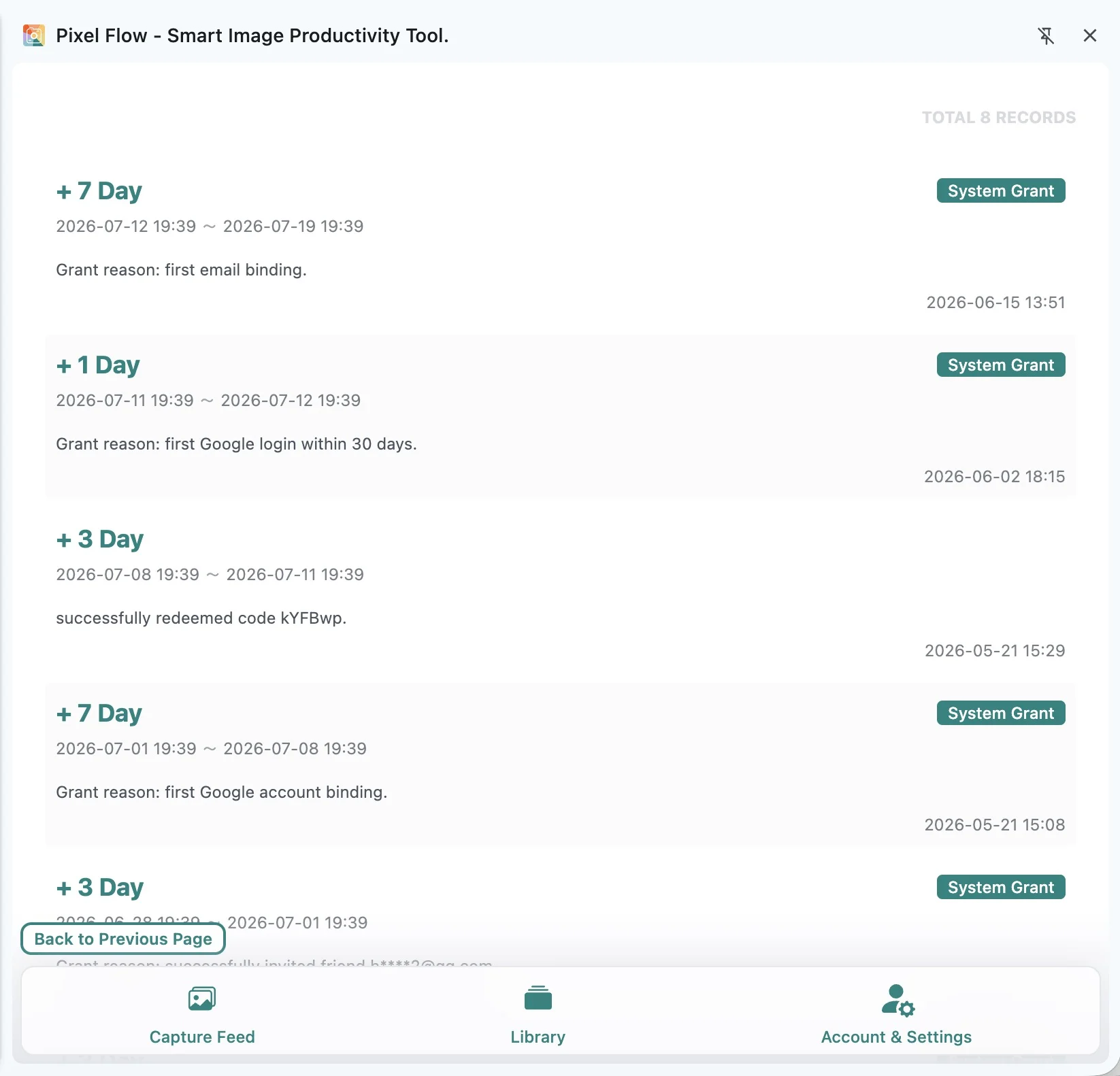
For each record, check these fields:
| Record field | What to check |
|---|---|
+ 7 Day, + 1 Month, + 1 Year | The PRO time added by this record. Refund or deduction records may show a negative value. |
| Start and end time | The actual time range covered by this added access. |
| System Grant | The record came from registration, binding, password setup, invite, or another system reward. |
| Grant reason or purchase description | Whether this was a purchase, redemption code, successful invite, or account action reward. |
| Creation time | When this record was written. It may be different from the entitlement start time. |
| Transaction ID, redemption code, or masked account | The source clue for purchase, redemption, or invite records. |
Why New Time May Not Start Today
PRO time is appended after your current expiration time.
For example, if you already have PRO and your expiration time is July 12, redeeming another 7 days today will add those 7 days after July 12. It does not overwrite the time you already had.
If your PRO access has already expired, the new time starts from the current time. The start and end time in each record helps you confirm exactly where the new time was added.
Which Actions Can Add PRO Time
You do not need to memorize every rule. After completing an action, open the records page. If you see the corresponding record, the time has been added.
| Action | Common record | Added time | Notes |
|---|---|---|---|
| First sign-up with email | Signed up with email | 7 days PRO | If a valid invite code was entered during registration, this registration record is merged and shown as 8 days. |
| First sign-up with Google | Signed up with Google | 7 days PRO | If a valid invite code was entered during registration, this registration record is merged and shown as 8 days. Existing accounts do not receive the first-registration grant again. |
| Register with a valid invite code | Invite-related records | Invitee: 1 day PRO; inviter: 3 days PRO | The invitee’s 1 day is merged into the first-registration record. The inviter receives a separate successful-invite record. |
| First email binding | First email binding | 7 days PRO | Unbinding and binding again will not grant the first-time reward repeatedly. |
| First Google account binding | First Google account binding | 7 days PRO | The record appears as a system grant. Unbinding and binding again will not grant the first-time reward repeatedly. |
| First password setup | First password setup | 7 days PRO | Changing the password later does not count as first password setup. |
| Password or Google login activity reward | First password login or Google login in a 30-day cycle | 1 day PRO | Pixel Flow checks account state and recent records. Within the same 30-day cycle, password login and Google login can grant only 1 day in total. |
| Redeem a redemption code | Successfully redeemed code | Determined by the code | Redemption codes may be distributed through official social campaigns, partner activities, purchases, or similar channels. The code must be unused and unexpired when redeemed. |
| Buy a monthly plan | Purchased upgrade | 1 month PRO | The record shows the transaction ID. |
| Buy a quarterly plan | Purchased upgrade | 3 months PRO | The record shows the transaction ID. |
| Buy a semi-annual plan | Purchased upgrade | 6 months PRO | The record shows the transaction ID. |
| Buy an annual plan | Purchased upgrade | 1 year PRO | The record shows the transaction ID. |

Check Invite Rewards
If you share your invite code with a friend and they register successfully, you can see the successful-invite record on the records page. To protect privacy, Pixel Flow shows the invited account in a masked form.

If you do not see the invite reward, first confirm that the other person used your invite code during registration, not after the account was already created. For the invite-code entry and rules, see Invite Code and Referral Rewards.
Check Before Purchase
Before upgrading or renewing, confirm that the signed-in account is the account you want to activate. Purchases, redemptions, and rewards are added to the current signed-in account. If the wrong account is used, the status and records will appear under that other account.
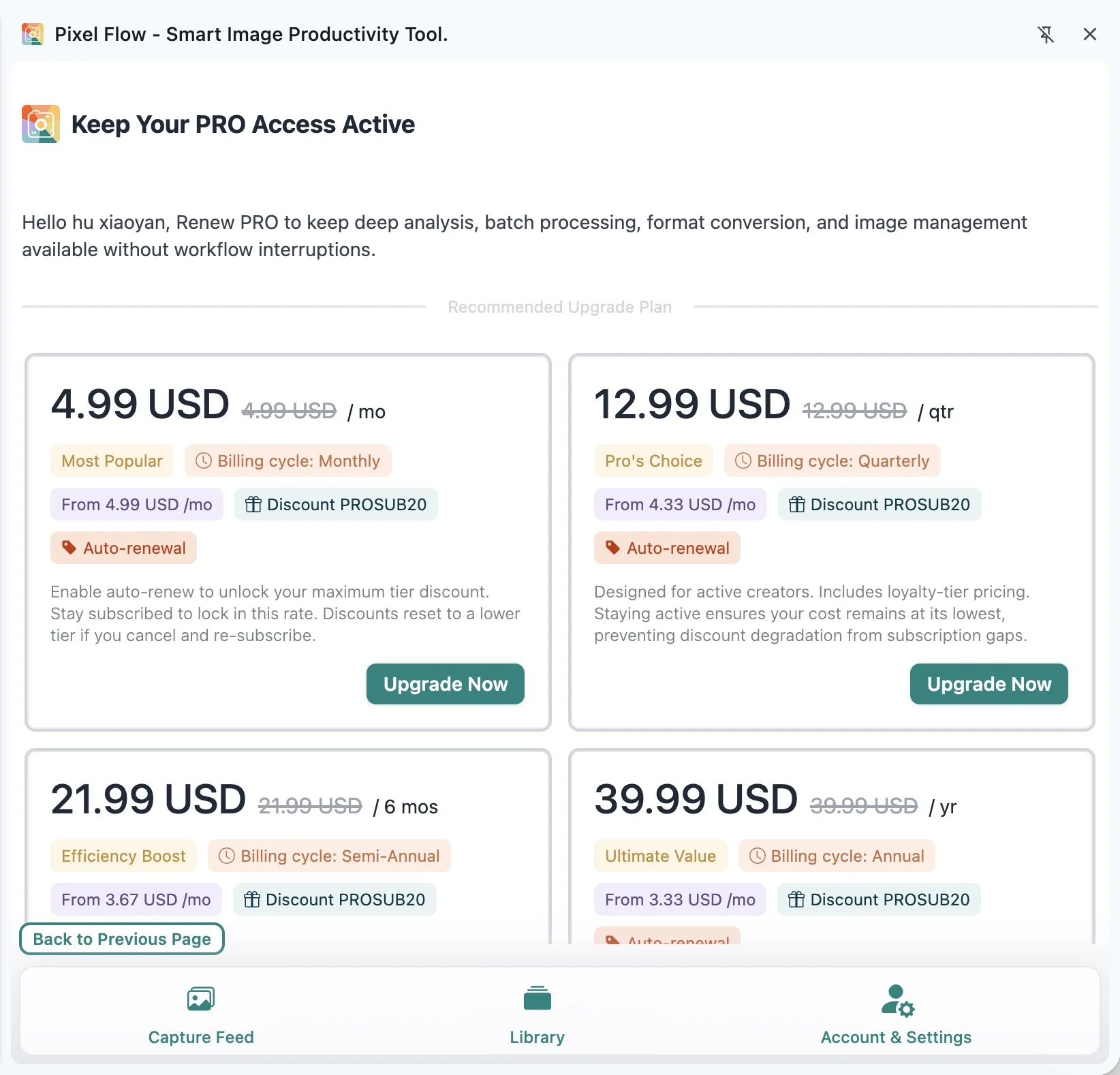
On the upgrade page, check these details before continuing:
| Area | What to confirm |
|---|---|
| Plan list | Plan period, final price, crossed-out original price, discount labels, and plan description. |
| Plan type | Auto-renewing plans renew on their billing cycle; one-time purchases expire automatically and do not renew. |
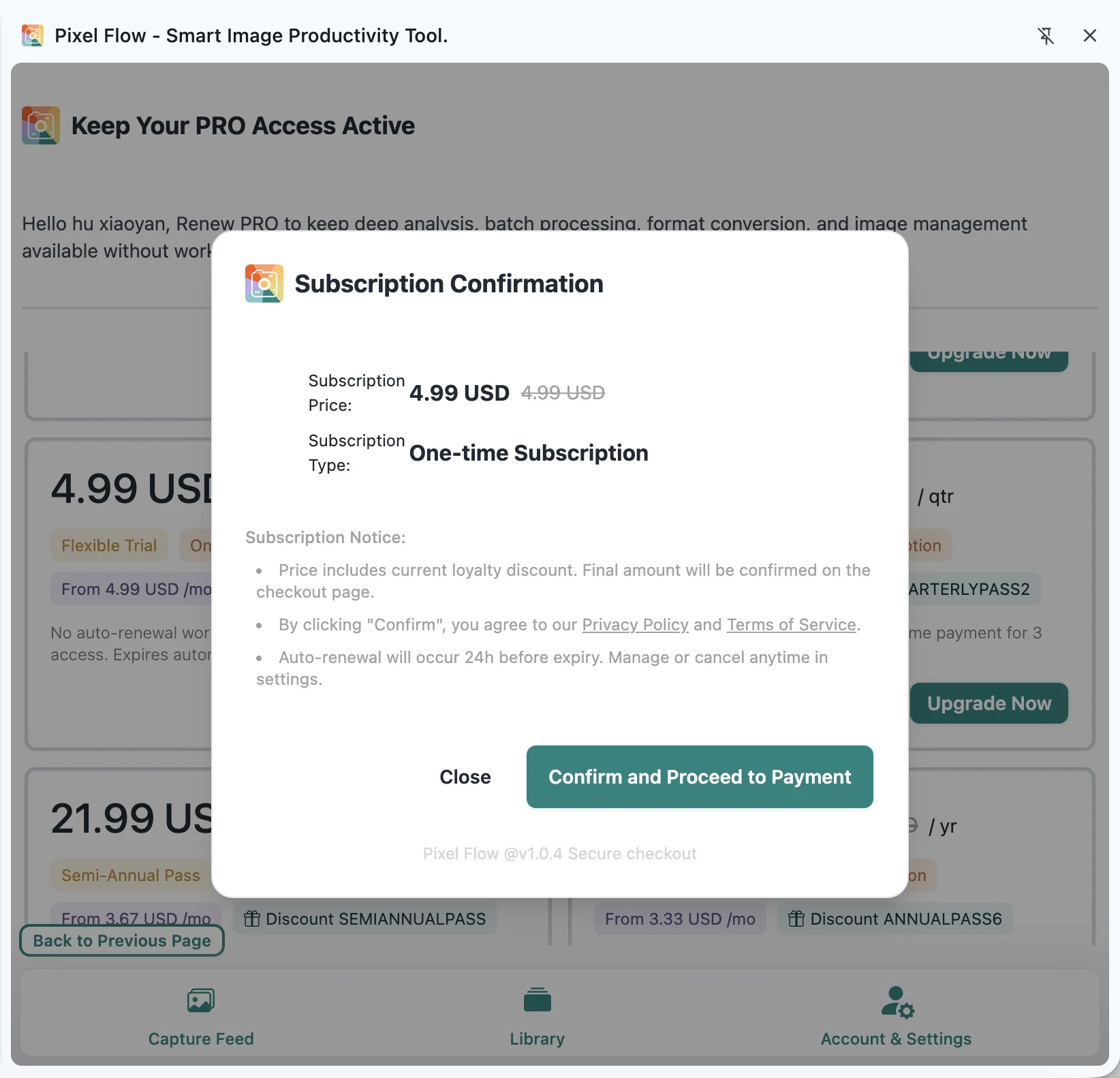
| Subscription confirmation dialog | Price, subscription type, billing cycle, Privacy Policy, and Terms of Service. |
| Creem checkout page | Final amount, taxes, payment method, and payment terms. The checkout page is the source of truth before payment. |
| Redemption code entry | If you already have a redemption code, you can use it first. The added time depends on the code rules. |
If you are not sure whether you need to buy the PRO version yet, first complete actions such as first registration, email or Google binding, password setup, or invite-code registration to receive free PRO time. After the system-granted PRO time appears on the records page, try the related PRO features before deciding whether to purchase.
Purchase PRO and Confirm Access
From Account & Settings, click Renew or Upgrade Now to open the upgrade page. Choose a plan, then review the subscription confirmation before going to payment.
After payment, return to the Pixel Flow payment status dialog and click I’ve paid, activate now. After activation succeeds, Pixel Flow refreshes your account information. You can also go back to Account & Settings and click Refresh to confirm.
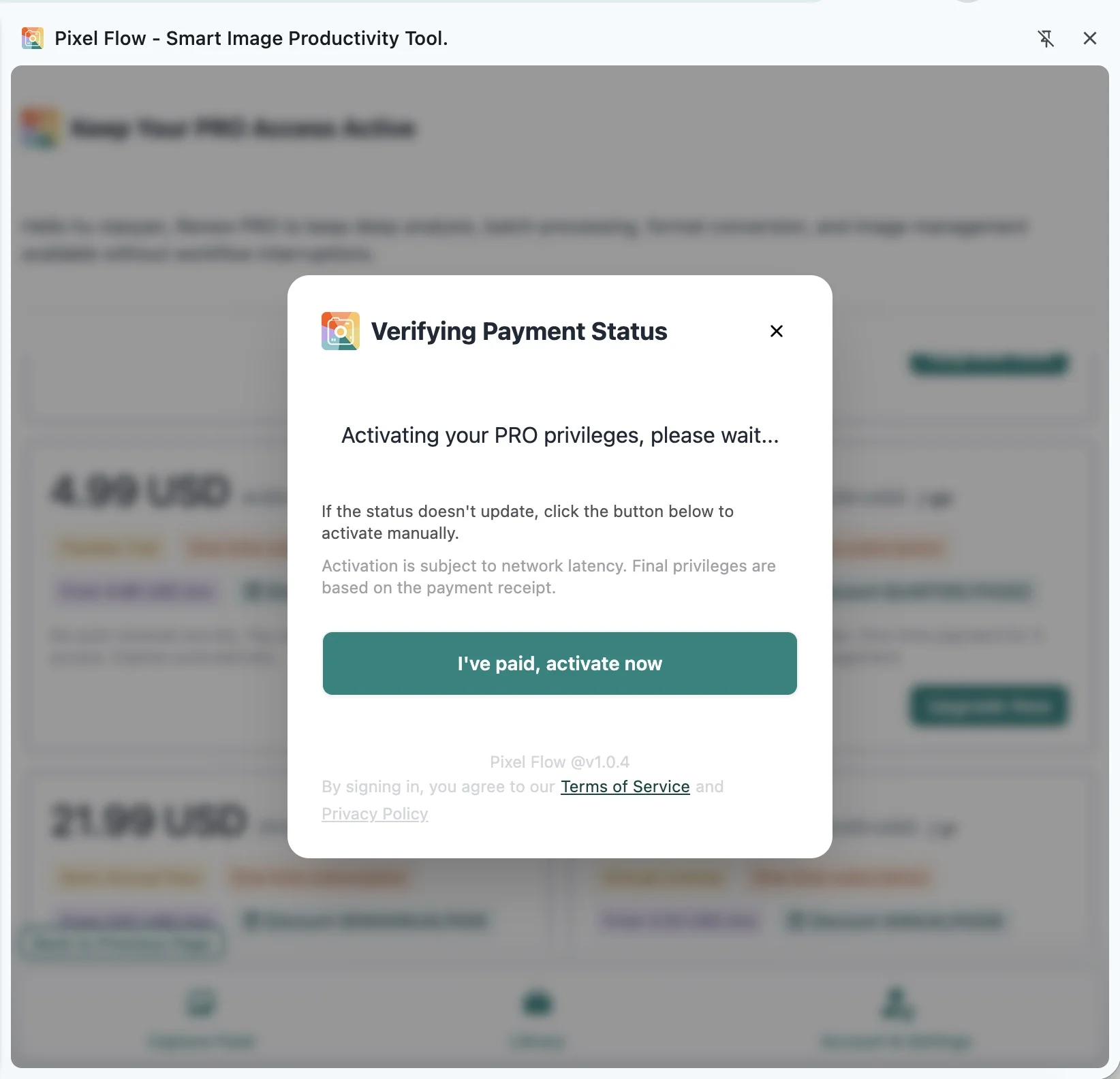
Why is manual activation needed? Payment provider callbacks may not return immediately. Pixel Flow does not keep polling payment status in the background for a long time, which reduces unnecessary requests and avoids keeping the side panel busy. After you finish payment, click I’ve paid, activate now so Pixel Flow can verify the current transaction ID and update your account status.
After a successful purchase, the records page usually shows a Purchased upgrade record with a transaction ID. The transaction ID is one of the most useful details when contacting support.
If the upgrade page will not open, the plan list fails to load, checkout cannot continue, or activation keeps failing after payment, submit the issue through Contact Support. Include your signed-in account, a screenshot of the purchase page, any error message, browser version, and the approximate time of the action so support can locate it faster.
Refunds, Cancellation, and Support
For refund requests, renewal cancellation, and one-time purchase rules, review the refunds and cancellation policy. Auto-renewing plans and one-time purchases are handled differently, so first check whether you bought an auto-renewing plan or a one-time purchase.
If a refund happens, the records page may show a deduction record. The deducted time follows the original purchase period, such as 1 month for a monthly plan or 3 months for a quarterly plan. Use that record to confirm the final expiration time after the refund.
When contacting support, include your signed-in account, a screenshot of Account & Settings, a screenshot of the records page, the approximate purchase or redemption time, and the transaction ID or the last few characters of the redemption code. Do not send passwords, verification codes, card numbers, or full payment card details.
Confirm Access After Redeeming a Code
If you already have a redemption code, see Redeem PRO Access with a Redemption Code for the full operation path. The upgrade page has a Redemption Code Entry near the bottom. After you enter a code and redeem it successfully, Pixel Flow refreshes your account information and the records page shows a successfully redeemed code record.
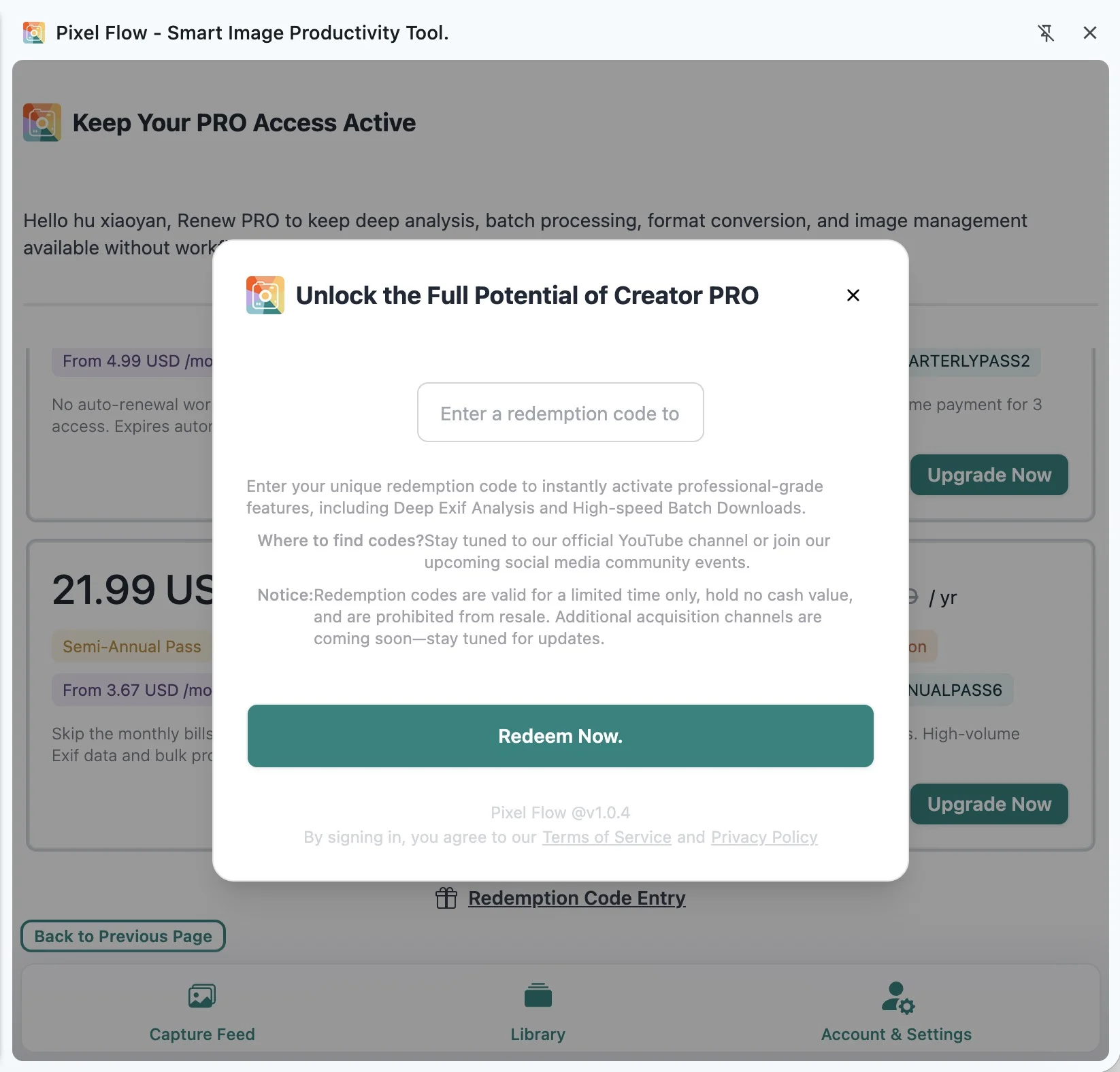
If the app says the code does not exist, has already been used, or has expired, check whether it was typed correctly and whether another account has already used it.
What Happens After PRO Expires
After PRO expires, you can still use Free features, but advanced capabilities and higher limits become restricted again. Favorites, tags, and download history already saved locally are not simply deleted because of expiration.
However, adding new data, importing data, batch downloading, format conversion, source-record options, deep analysis, and similar actions may follow Free limits or show an upgrade prompt.
If your favorites, tags, or download history are important, regularly export a backup from Data Backup and Import.
If Status Does Not Update
Check in this order:
- Confirm that the signed-in account is the same account used for the purchase, redemption, or reward action.
- Go back to the top of Account & Settings and click Refresh.
- Close and reopen the Pixel Flow side panel.
- Open Purchase / Reward History and check whether the corresponding record has been created.
- If the purchase or redemption succeeded but the record and expiration time still do not change, submit the issue through Contact Support.
When contacting support, include your signed-in account, a screenshot of Account & Settings, a screenshot of the records page, the approximate purchase or redemption time, and the transaction ID or the last few characters of the redemption code. Do not send passwords, verification codes, full card numbers, or other sensitive credentials.
Related Account Features
For other account tasks, use these pages:
| What you need | Related guide |
|---|---|
| Understand email, password, and Google sign-in | Login Methods |
| Bind or change Google account and email | Bind Google Account and Email |
| Find the invite-code entry and referral reward rules | Invite Code and Referral Rewards |
| Report purchase, redemption, or account issues | Contact Support |
| Back up favorites, tags, and download history | Data Backup and Import |
Frequently Asked Questions
Why does PRO not appear immediately after payment?
The payment provider callback and account refresh may take a short time. First click I’ve paid, activate now in the payment status dialog, then go back to Account & Settings and click Refresh. If it still does not update, contact support.
Why did the 7 days I received not start today?
If you already had unexpired PRO time, new time is appended after your current expiration time. The record start and end time shows the real effective range.
Why did binding an account not grant the reward again?
Rewards such as first email binding, first Google account binding, and first password setup are usually granted only once. Unbinding and binding again does not grant the same first-time reward repeatedly.
Will my favorites and tags disappear after PRO expires?
They are not simply removed because PRO expires. But adding, importing, batch processing, or using advanced settings after expiration follows Free limits.
Should I trust Account & Settings or the records page?
Use the top of Account & Settings to confirm whether the account is currently PRO and the final expiration time. Use the records page to check each purchase, redemption, invite, or system grant source and duration.