
Docs
Pixel Flow user manual and best practices
Find scanning, filtering, image details, library, export, account, and industry workflow guidance by task.
Best Practices: Turn Web Images into Reviewable Work Materials
In a web image organization workflow, many teams already have a way to “save images.” What usually breaks down is the second half of the work: you cannot find an image you once saw, downloaded files no longer explain where they came from, target images and irrelevant page elements get mixed together, and image status only lives in chat messages. When it is time to review, hand off, publish, or archive, people have to reopen pages, take screenshots again, and explain the same context again. In practice, if an image needs to enter review, handoff, publishing, or archive work, it should no longer be treated as only a file. It should become a work record with context.
In that workflow, Pixel Flow’s best practice is to complete that record: collect candidate images from the webpage, filter out non-target images, keep the images that actually need follow-up, then use the Library, image tags, Image Details, source and rights clue records, exported inventories, and download history to preserve “where this image came from, why it was kept, and what should happen next” as reviewable material.
If your task does not yet have an obvious industry pattern, start with the general workflow on this page. If you already know your task belongs to design references, ecommerce product images, marketing assets, content images, fan archives, AI image datasets, or online photography archives, skim this page first, then move into the role-specific workflow for more practical details.
Review/Handoff Challenges and Pixel Flow Support
For reference or archive images that are already on a webpage, if they later need teammate review, client confirmation, or archive use, people usually will not only ask “where is the file?” They care about which page the image came from, why it was kept, what status it is in, and whether it can continue to be used. The issues below are the most common sticking points in a web image organization workflow.
| Situation in Your Work | How to Use Pixel Flow | Sticking Point Pixel Flow Solves |
|---|---|---|
| You once saw an image on a page, but only remember “roughly which page it was on” and cannot find it later | When you see an image that feels useful, use the Capture Feed to display the images accessible on the current webpage, favorite that image, and review it later in the Library | You no longer rely only on memory. You can return to the Library and review the image repeatedly |
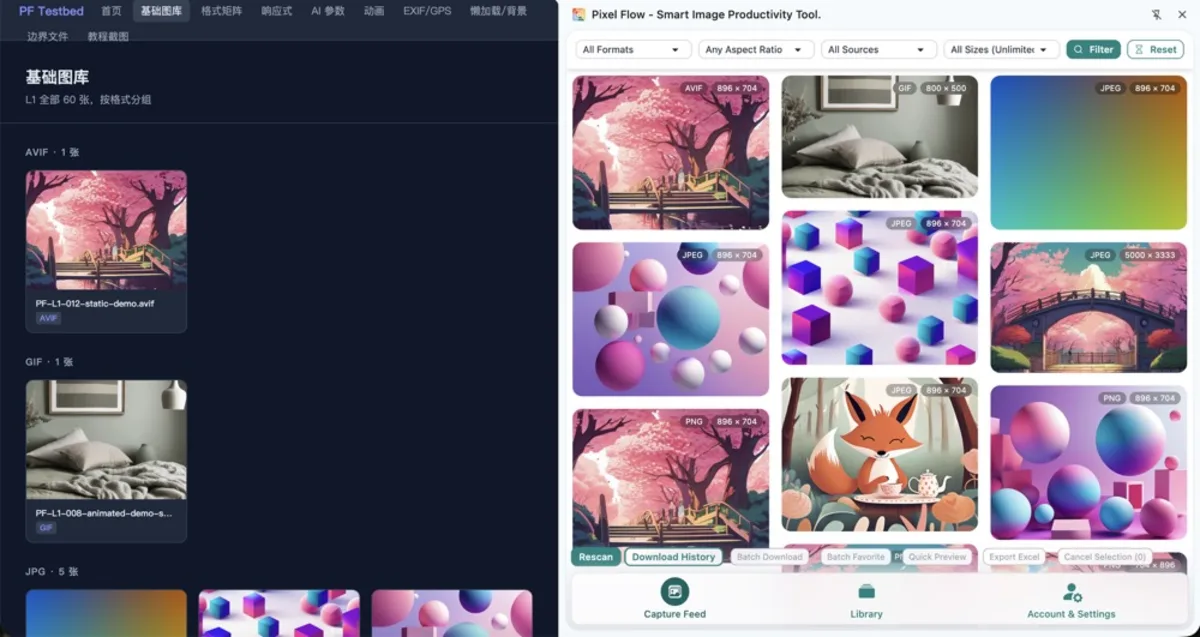
| A page contains too many mixed images: icons, avatars, button backgrounds, thumbnails, and target images all appear together | Filter by format, aspect ratio, source type, and size, then use Quick Preview to compare candidates before deciding whether to favorite or download them | You can remove irrelevant page elements, icons, backgrounds, and other non-target content first, then find target images faster |
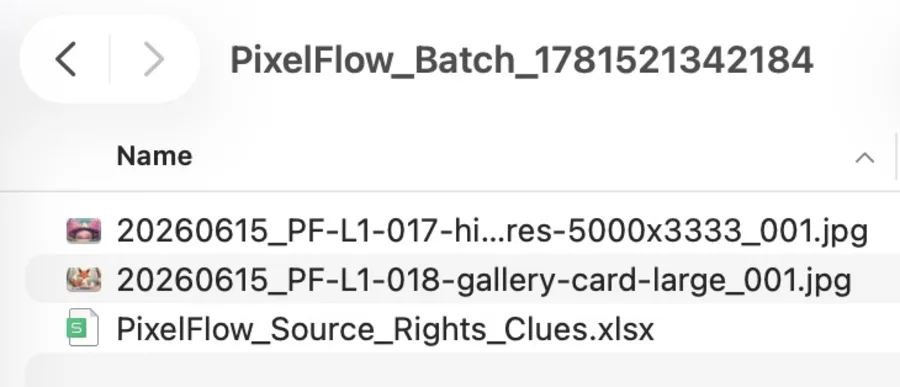
| An image file has been downloaded to your computer by itself, leaving only a filename and download folder with no source context | Keep a “Source and Clues Excel” file in the ZIP package downloaded with the images. The Excel file includes source page, image URL, format, dimensions, alt text, and operation footprint fields that can be checked multiple times | Even after an image is downloaded into a folder, its source can still be traced, reducing repeated “where did this image come from?” questions |
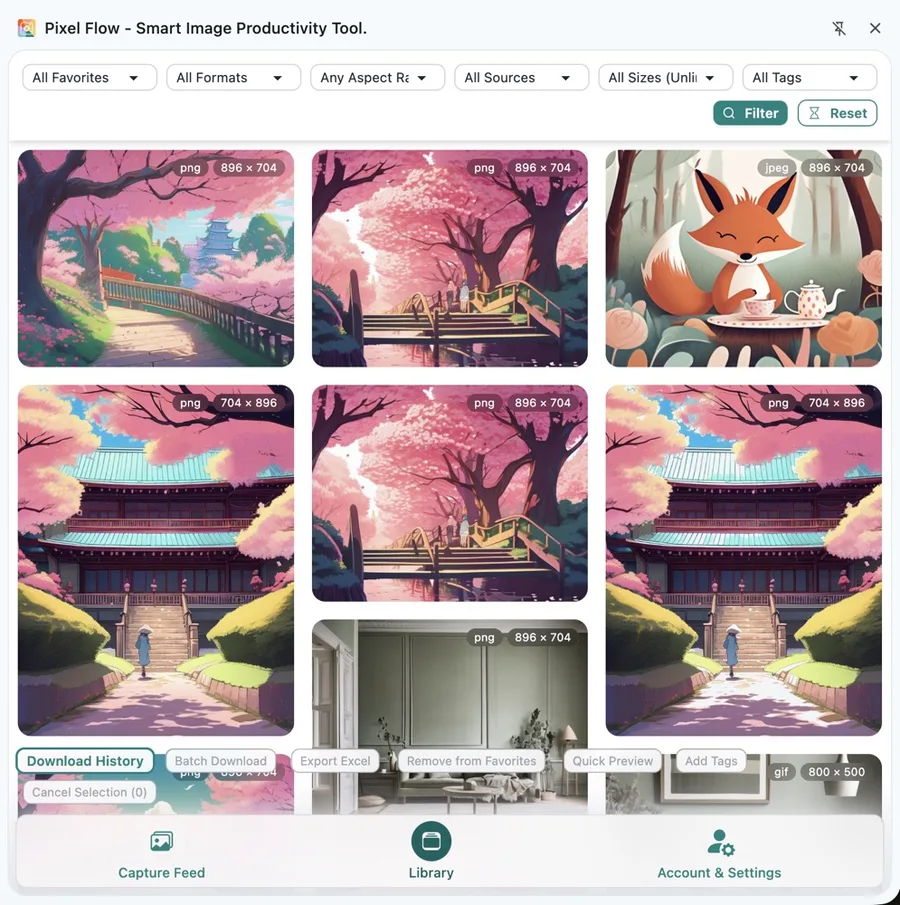
| Image decisions only stay in chat: “reference only,” “pending rights review,” or “usable candidate” never becomes part of the image record | Let the Library store candidate-image records. Use image tags to record project, purpose, owner, and review status. When you need to confirm status, filter by image tags in the Library or open Image Details | Review status becomes attached to the image itself, so the team does not have to rely only on chat history to understand image progress |
| You need to hand images to someone else for follow-up, but they only receive an image package and still need to ask about source and purpose | Export an image inventory or keep source and rights clue records when downloading, so later reviewers can inspect, confirm, and review the same set of materials | Image files and source materials stay aligned during handoff, so later teammates do not need to ask for source and purpose again |
| A project is over and needs archive review, but you do not know which files were downloaded or whether someone will organize them again | Download history records the download entry, time, package, and included files for repeated confirmation. Image Details also shows download time for later review | You can repeatedly check download packages and processing records, reducing duplicate organization or missed archive work |
| Source clues are mistaken for authorization: a page URL is treated as permission for commercial use, publishing, or training | Docs, tables, and prompts clearly state that “source clues are review materials.” Image tags can also be used to manually distinguish review status. Image authorization still depends on formal authorization documents from the website or rights holder | Source clues and authorization decisions stay separate, reducing the risk of treating “there is a source page” as “this is authorized” |
Use Pixel Flow’s General Workflow to Turn Images into Materials
Whether you work in design, ecommerce, marketing, content, fan archives, or AI image dataset pre-screening, web image organization can usually start with this workflow.
- Clarify the business goal first. Decide whether the images you are about to organize and archive are for visual reference, product checks, competitor observation, content images, archive materials, rights review, dataset pre-screening, or another business scenario.
- Open the target website and wait for the target images to appear on the page. If some images only appear after you scroll down, or are inside pagination, tabs, or SKU switches, manually browse those areas first.
- Enter Pixel Flow’s Capture Feed. Click the browser extension icon in the top-right toolbar to open the side panel, or choose “Manage Current Page Images” from the context menu to scan the current page and collect webpage images into the Capture Feed.
- In Pixel Flow’s Capture Feed, use size, format, aspect ratio, source type, and resolution filters to remove icons, avatars, button backgrounds, placeholders, repeated thumbnails, and other small images that are clearly unrelated to the business goal.
- Decide in Pixel Flow whether an image should continue. Use Quick Preview or Image Details to judge whether a candidate is worth follow-up. Do not put every page element into your working materials.
- Preserve status in the Pixel Flow Library. Favorite the images that truly need follow-up, then use image tags to record project, page, purpose, owner, review status, or usage boundary.
- Pixel Flow Image Details keeps source page, image URL, format, dimensions, alt text, metadata, AI clues, and operation footprint information, so you can explain “where this image came from and why it was kept” and review it repeatedly later.
- Export materials according to your handoff needs. When collaboration or archiving is needed, export an image inventory, batch download image files, or enable source and rights clue records so images and source clues stay in the same package and later team discussion happens around the same material set.
Pixel Flow can only process images that are already visible or accessible on webpages. Images still inside design files, local folders, cloud-drive asset packages, or CMS drafts need to be used and displayed by a webpage first before this workflow can scan and organize them.
Key Step One: From Capture Feed to Library
The Capture Feed is for answering “what images are on the current webpage?” Think of it as a temporary workbench: you can rescan the page, filter by format, aspect ratio, source type, and resolution, then batch favorite, quick preview, export an inventory, or download.
The Library is for answering “how should these candidate images be managed later?” After images enter the Library, you can continue filtering by favorite time, format, aspect ratio, source type, resolution, and tags. You can also batch add tags to a group of images to form stable project materials.
In practice, do not download every image into a local folder at the beginning. A steadier method is to first inspect the current page in the Capture Feed, remove icons, backgrounds, repeated thumbnails, and clearly irrelevant small images, then favorite only the images that still need review, handoff, discussion, or archiving. This way, the Library does not hold “every image that appeared on the webpage.” It holds candidate materials that have already passed an initial human judgment and are worth follow-up.
Key Step Two: Use Image Tags to Record Review Status
Image tags are best for short states that affect later filtering, handoff, and review. Do not use tags for long notes, contract clauses, or full authorization emails, because those materials belong in project documents or a team knowledge base. Image tags should be short and meaningful. You can build tags from the suggestions below:
A useful tag system is usually not about categorizing images as finely as possible. It is about helping the team understand where an image stands the next time they open the Library. For example, a project tag answers “which task does this belong to?”, a use-case tag answers “which workflow will it enter?”, and a review-status tag answers “can this image move forward now?” These short tags, together with Image Details and source clues, turn decisions that used to live in chat into information attached to the image itself.
| Tag Type | Examples | Problem It Solves |
|---|---|---|
| Project or page | Website redesign, Black Friday campaign, competitor page review | Distinguishes different batches and source pages |
| Use case | Design reference, product detail page, content image, dataset pre-screening | Explains which workflow the image is expected to enter |
| Owner | Design review, operations review, rights review | Clarifies who handles the next step |
| Review status | Pending first pass, pending source check, pending rights confirmation, archived | Prevents the same image from being judged repeatedly |
| Usage boundary | Internal reference only, usable candidate, not recommended | Reduces misuse and accidental publishing |
If your team does not have a tag convention yet, start with a small number of stable tags, then expand gradually. For tag entry points and limits, see Image Tag Management and Favorite Images and Organize with Tags.
Key Step Three: Use Source Inventories to Explain Origin and Next Use
Exported image inventories and source and rights clue records are useful for handoff, review, and archiving. They help preserve downloaded filenames, source pages, image URLs, site names, page titles, image types, dimensions, download times, and usage reminders.
The point of this step is not to make an authorization decision for you. It is to make sure everyone sees the same base materials first. After image files are downloaded to a computer, the easiest context to lose is the source page, page title, image URL, and organization time. If those clues are not handed off together, later reviewers can only ask again, search again, and re-evaluate why the image was kept. Delivering an image inventory or source and rights clue record with the image package lets review, discussion, and archiving happen around the same material set.
Separate these two questions:
| Material | Can Answer | Cannot Replace |
|---|---|---|
| Source page | Which webpage the image appeared on | Image ownership and commercial license |
| Image URL | The technical location of the image resource | Authorization URL or purchase proof |
| Page title and site name | Source context for review | Rights-holder identity confirmation |
| Download time and filename | Matching local files with the inventory | Publishing approval or client confirmation |
| Usage reminder | A prompt for human rights-boundary review | Legal advice or final authorization conclusion |
Learn Role-Specific Pixel Flow Workflows
The workflow above helps you establish a shared method: collect candidate images from webpages, filter, favorite, tag, then turn images and source clues into reviewable materials. Different roles, however, care about different details. Designers care more about reference source and use case, ecommerce teams need to separate main images, detail images, and SKU images, content teams need to trace image sources after images enter drafts, and AI dataset teams care more about quality, duplicates, source, and rights-review consistency.
The role workflows below do not repeat the same process. They place Pixel Flow’s Capture Feed, Library, image tags, Image Details, exported inventories, and source and rights clue records back into specific work contexts: which images should be removed first, how tags should be designed, what the final handoff material should look like, and which risks are easiest to miss.
| If Your Task Is | Start With | Urgent Pain Point | Final Output |
|---|---|---|---|
| Organize visual references, competitor pages, or landing page inspiration | Designer visual reference curation | Reference images leave the webpage without clear source or purpose | A visual reference inventory with source and project tags |
| Organize product images from product pages, campaign pages, or competitor pages | Ecommerce image workflow | Main images, detail images, SKU images, icons, and competitor images get mixed together | A product image inventory with source, specs, and review status |
| Review competitor visuals, campaign assets, brand pages, and ad landing page image sources | Marketing and brand asset workflow | Images seen earlier cannot be found later, and handoff lacks source evidence | A source-backed review inventory for discussion, handoff, and rights confirmation |
| Organize article, campaign page, social, or client-content images before publishing | Content team pre-publish review | Images enter drafts before source and rights are traced | Reviewable image materials for editors, designers, operators, or approvers |
| Organize official celebrity images, event images, fansite photos, and fan image packs | Fan community image archive | Source, credit, distribution status, and long-term retention are messy | A fan archive with person, event, source, and sharing-status tags |
| Organize candidate images for internal research, labeling, or AI image datasets | AI image dataset curation | Quality, duplicates, source, and rights-review standards are inconsistent | A candidate pool and inventory for quality, source, and rights review |
| Review photography work already published on client pages, galleries, media releases, or portfolios | Online photography archive | Online versions, capture parameters, source pages, and follow-up status are scattered | Work records with online source, capture parameters, and follow-up status |
Related Docs
- Capture Page Images in Bulk: enter the Capture Feed from the current webpage and understand scanning, filtering, and rescanning.
- Favorite Images and Organize with Tags: save candidate images to the Library and use tags to record project and status.
- Library and Export: understand how Library, tags, export, and download history form a long-term material management workflow.
- Source and Rights Clue Records: see which source fields can be attached during downloads and what those fields cannot replace.
- Export Image Inventory: turn candidate images into a reviewable spreadsheet inventory.
- Batch Download with Source Records: keep image files and source clues together in one package.
- Data Safety, Backup, and Cleanup: protect local work records before cleanup, migration, uninstall, or device changes.