
Docs
Pixel Flow user manual and best practices
Find scanning, filtering, image details, library, export, account, and industry workflow guidance by task.
Content Team Pre-Publish Review: Source Records, Rights Checks, and Handoff Lists
For content teams, the difficult part is often not “finding an image.” The risk usually appears after an image leaves the webpage and enters an article draft, publishing backend, social calendar, or client package: nobody can clearly say where it came from, where it will be used, or whether rights have already been confirmed.
Pixel Flow fits best in the pre-publish organization and review stage. You can keep candidate images, source pages, image URLs, dimensions, formats, alt text, image tags, download records, and source and rights clue records together before editors, designers, operations teams, or reviewers decide whether each image can move forward.
Pixel Flow can help you keep image sources and review clues, but it does not grant copyright, commercial use rights, republication rights, or platform publishing permission. Before publishing, you still need to confirm source-site terms, license documents, client approval, stock-library licenses, portrait rights, trademark rules, and your team’s internal requirements.
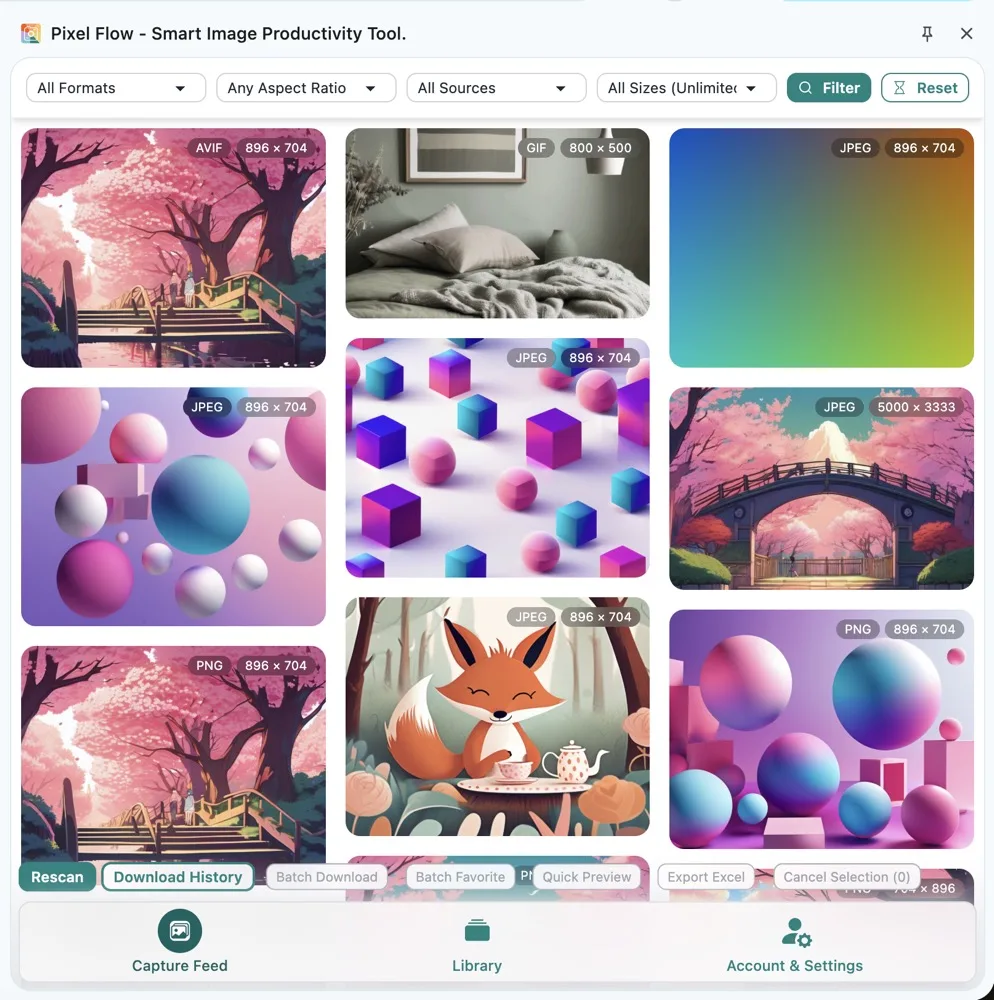
How Content Teams Use Pixel Flow
The author recommends breaking content image handling into 8 steps:
- On a page you are allowed to access, open Capture Page Images in Bulk.
- In the capture feed, filter out icons, avatars, button backgrounds, low-resolution thumbnails, decorative images, and images that are clearly unrelated to the content you are organizing.
- Use Quick Preview to compare image content, clarity, composition, dimensions, and whether each image fits the current draft.
- Favorite candidate images to the Library instead of rushing to download everything.
- Use image tags to mark columns, projects, usage, and review status.
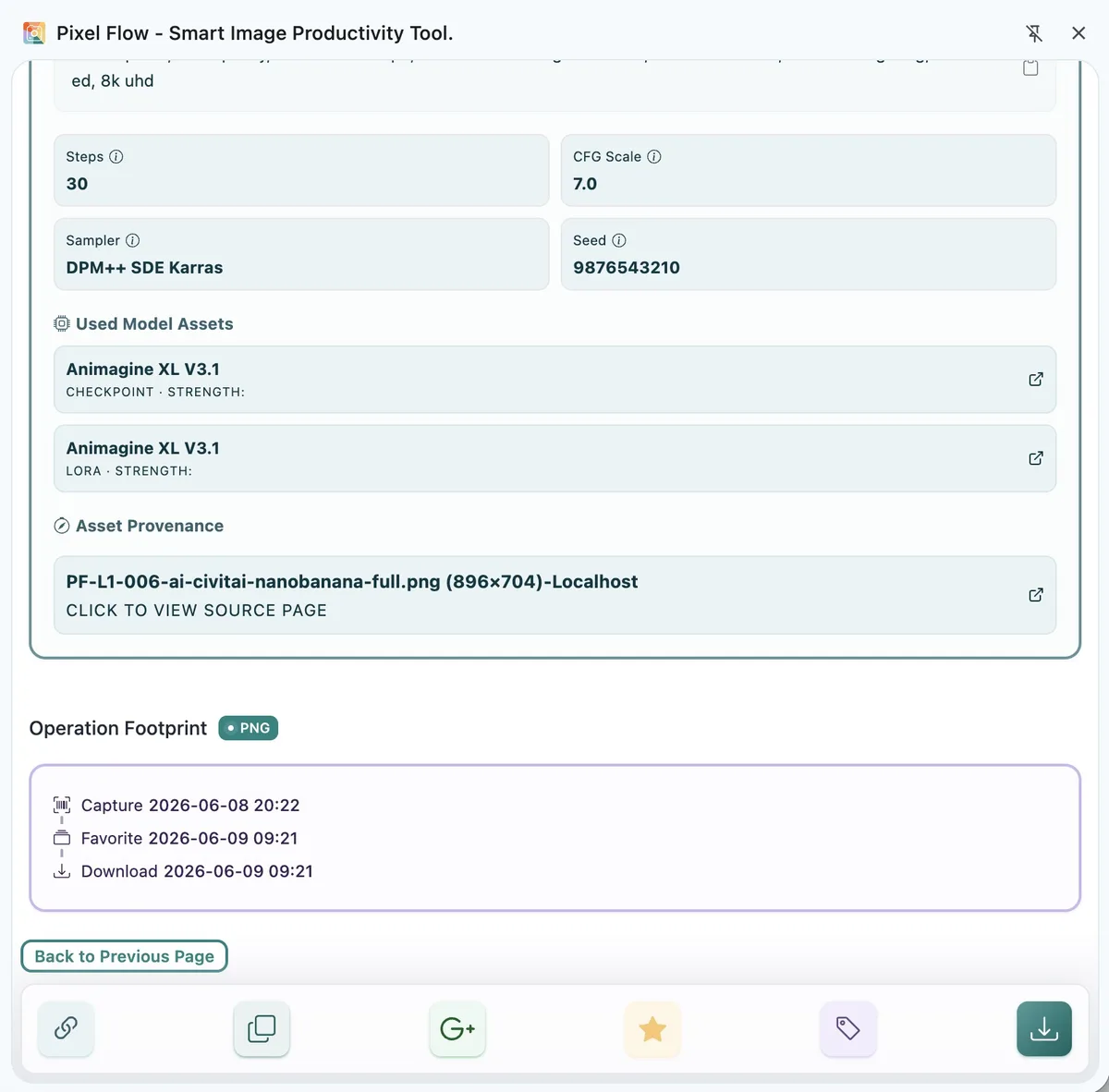
- Open Image Details to check the source page, image URL, format, dimensions, alt text, metadata, and AI-generation clues.
- Export an image inventory, or keep source and rights clue records when downloading.
- Before publishing, archive the image files, source list, license materials, client approvals, and final usage locations together.
This workflow helps content teams organize “observable information” first, then move into the separate decision of whether an image can be used. You can use it to solve several practical problems:
| What you want to solve | How Pixel Flow helps |
|---|---|
| There are too many images on a page, and you do not know which ones are worth checking | Narrow the range in the capture feed by format, ratio, source, and dimensions |
| Candidate images are scattered across different pages | Favorite them to the library and create a reviewable candidate set |
| Later reviewers do not know where an image is intended to be used | Use image tags to record column, project, usage, and review status |
| Editors, designers, and operations teams review images with different context | Use image details and exported inventories to align on source, dimensions, format, and context |
| The source is lost after download | Keep source and rights clue records when downloading |
| You need to review what happened after publishing | Use operation footprint, download history, and archived materials to review collection, favorite, and download timing |
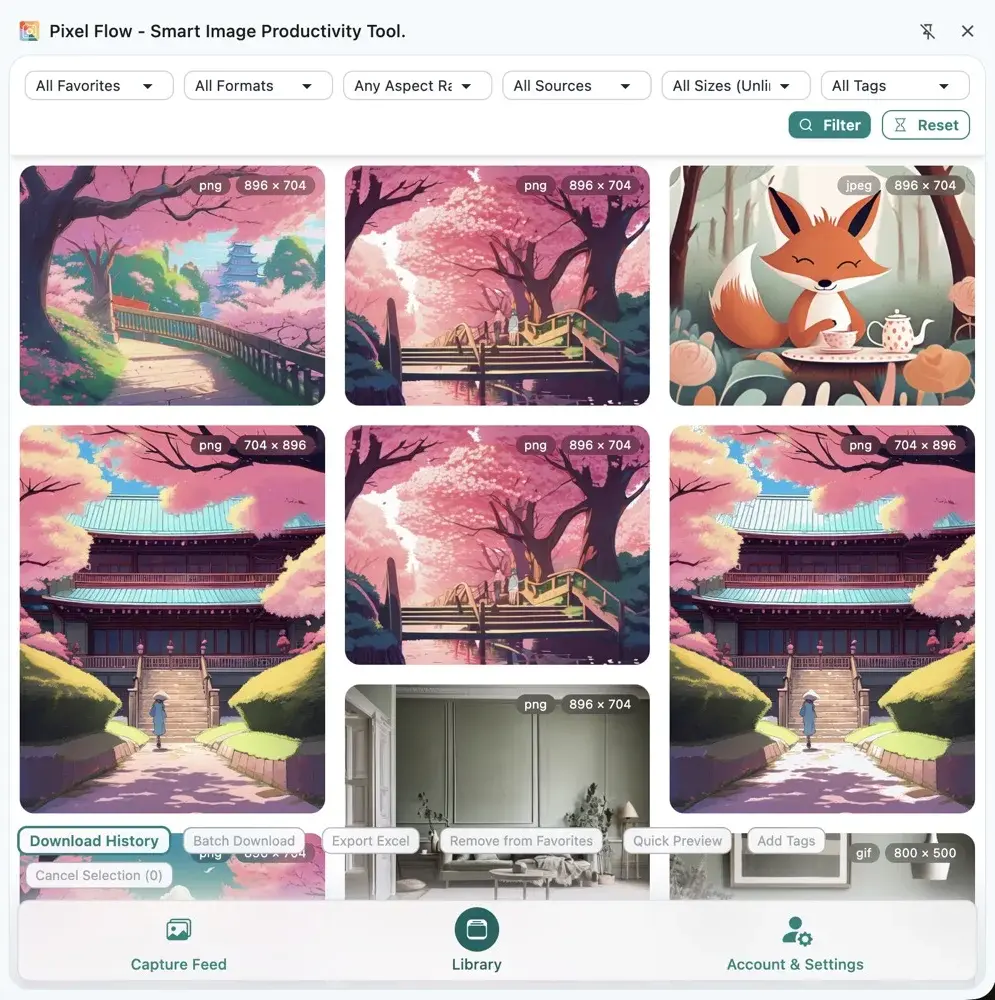
When This Workflow Is Useful
If an image is only for a quick personal look, you may not need the full workflow. But once an image may enter public content, client delivery, brand communication, or cross-team collaboration, it is better to treat it as an asset record that needs a traceable review trail.
Common scenarios include:
- Choosing images for website articles, blogs, knowledge bases, white papers, or case pages.
- Preparing images for newsletters, social posts, email marketing, or campaign landing pages.
- Organizing brand images, product images, press images, or portrait images provided by clients.
- Collecting candidate images from resource pages, brand pages, press releases, gallery pages, or public pages.
- Handing a batch of images to editors, designers, operations teams, clients, or reviewers.
- Needing to review image sources, download records, and handling status after publishing.
The focus of this document is not teaching you to download a few more images. It is about turning images from “temporary files” into “publishable materials that can be reviewed.”
Where Image Review Belongs in the Editorial Process
The problem content teams fear most is usually not choosing an image itself. It is discovering, after an image has already entered layout, design files, or a publishing backend, that the team still needs to trace its source, rights, and usage scope. From a workflow perspective, the more stable approach is to move review earlier, before images enter the formal draft.
| Editorial stage | Recommended action | Avoid |
|---|---|---|
| Topic and research collection | Favorite candidate images only, then tag by topic and source | Downloading everything while browsing |
| Draft image selection | Use the capture feed and library to shortlist images that may be used | Putting unclear-source images directly into the body |
| Before design edits | Open image details and check dimensions, format, source page, and readable clues | Cropping, recoloring, or compositing first, then looking for the source later |
| Final pre-publish review | Export an inventory and confirm rights scope, attribution, portrait, and trademark limits item by item | Treating “favorited” or “downloaded” as publishable |
| Post-publish archive | Save image files, source lists, license materials, approval records, and final URLs | Keeping only compressed publish-ready images |
If editors, designers, operations teams, clients, and legal reviewers are all involved, the author recommends using Pixel Flow exports as a shared discussion base. The export answers “where this batch of images came from and how it was organized,” while license materials answer “why it can be used this way.”
How To Design Image Tags
Image tags are good for workflow status. They are not a place for complex notes. Contract terms, client approval comments, stock-library order numbers, license email screenshots, and legal judgments should stay in team documents or project archives.
Consider splitting tags into three groups:
| Tag type | What it records | Examples |
|---|---|---|
| Project or column | Which column, client, campaign, or topic the image belongs to | company-blog, client-case, 618-campaign, brand-press-release |
| Usage scenario | Where the image may be used | article-cover, body-image, social-backup, landing-page-hero |
| Review status | Whether the image can continue through the workflow | pending-license-confirmation, internal-reference-only, client-provided, license-confirmed, not-for-commercial-use, attribution-required |
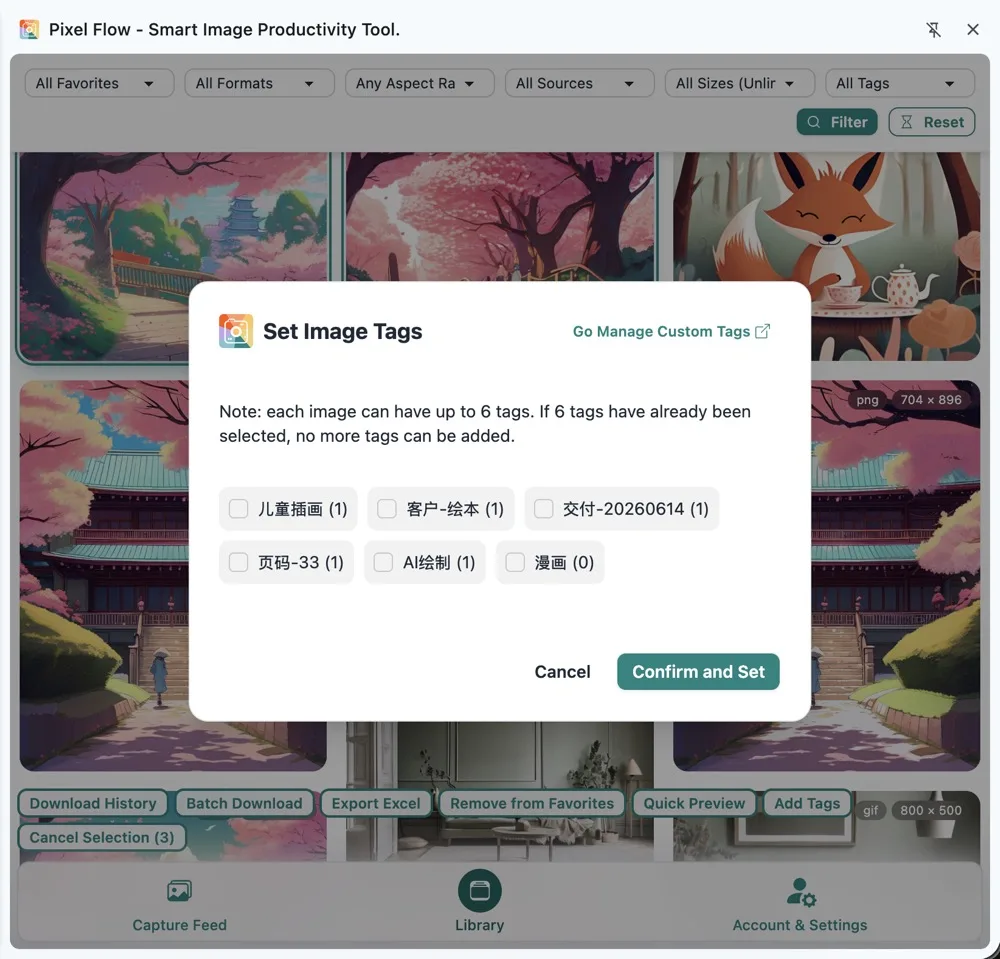
Tag names should stay stable. For example, “pending license confirmation” is better for long-term team use than “haven’t asked the client yet”; “internal reference only” is clearer than “keep for now” when you need to prevent accidental publishing.
What To Focus on in Image Details
When entering Image Details, content teams do not need to understand every technical field. The goal is knowing which fields can help decide what to do next.
| Information to check | What it helps you judge |
|---|---|
| Source page | Return to the page where the image appeared and review context, publisher, and page terms |
| Image URL | Match a local file back to its original resource address |
| Format and dimensions | Decide whether it fits covers, article bodies, social posts, or landing pages |
| Alt text | Understand what description the page gives the image, without relying on it completely |
| Image tags | Confirm project, usage, and review status |
| Operation footprint | Review when the image was captured, favorited, or downloaded |
| AI-generation clues | Decide whether you need to confirm generation platform, client requirements, or labeling rules |
| Creator, copyright, editing software, and other metadata | Identify possible author, rights, or post-processing clues that need follow-up |
This section is a technical standards note. General users can skip it first.
Pixel Flow displays metadata, AI-generation clues, and source clues based on public technical standards such as Exif, XMP, IPTC, and C2PA, reading them from image files or webpage context. It does not invent information that is not present.
Platforms, source websites, or content delivery networks may remove, compress, or rewrite image metadata to reduce transfer costs, protect privacy, or standardize image files. Treat readable fields as review clues only. If a field is missing, that does not mean the image has no copyright or can be freely used.
How To Use Exported Inventories During Internal Review
When you need to send candidate images to others for review or viewing, the author recommends starting with Export Image Inventory or downloading with source and rights clue records. The value of the inventory is not that it makes decisions for you. It lets everyone see the same overall image information first, then discuss, review, and confirm around the same source, dimension, format, tag, and usage-reminder fields.

Content teams can divide the work like this:
| Role | What to focus on | Result to give |
|---|---|---|
| Editor | Whether the image fits the topic, needs attribution, and works in the article context | Keep, replace, or use an owned image |
| Designer | Dimensions, ratio, clarity, color, and whether secondary editing is needed | Design-ready, replace, or request a higher-resolution version |
| Operations | Whether it fits the platform, whether cover cropping is safe, and whether timing matches the campaign | Schedule, adjust, or keep as internal backup only |
| Reviewer | Source page, rights scope, portrait rights, trademarks, stock-library license, and client approval | Publishable, needs more material, or cannot be used |
| Archivist | Whether image files, inventories, license materials, and final publish locations are stored together | Archive complete or return for missing materials |
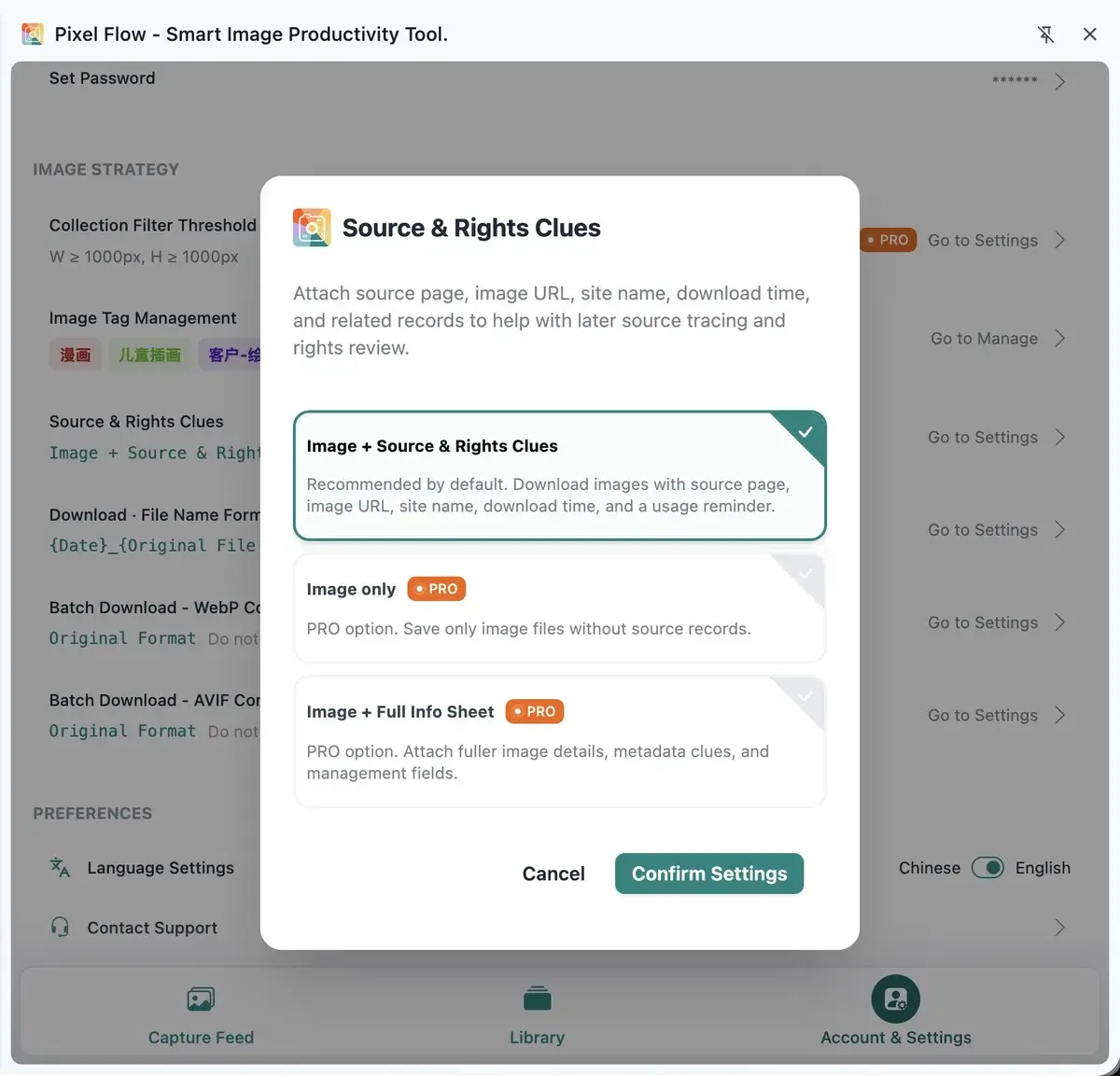
The author strongly recommends keeping “images + source and rights clue records” when downloading. The download package will include the source page, image URL, site name, download time, and usage reminders. If you need fuller asset-management fields, choose the full information sheet. It adds tags, favorite time, download count, compatible image URLs, AI-generation clues, camera device, editing software, and more. See Source and Rights Clue Records for the setting.
What Social Media Assets Need Extra Attention
Social media images are more likely to be reposted, cropped, compressed, overlaid with text, and reused across platforms, so usage boundaries should be confirmed earlier.
Before publishing, check especially whether:
- The image includes identifiable people, children, license plates, addresses, orders, chat records, or other private information.
- The image includes trademarks, packaging, film or TV stills, artwork, fonts, interface designs, or third-party product images.
- The source allows social platform publishing, advertising, secondary editing, text overlays, cropping, or cross-account reuse.
- Client-provided images are limited to a specific campaign, time period, or platform.
- AI-generated images satisfy team labeling requirements, platform rules, and client requirements.
- Portrait, landscape, and square crops may mislead users or hide attribution on different platforms.
If you are unsure, first mark the image as “pending license confirmation” or “internal reference only” instead of placing it directly into the publishing schedule.
Pre-Publish Checklist
Before formal use, confirm at least these items:
| Check item | Question to confirm |
|---|---|
| Source | Can you return to the source page or source record? |
| Rights scope | Does it allow republication, commercial use, editing, advertising, client delivery, or cross-platform publishing? |
| Attribution | Must you keep the author name, source link, stock-library attribution, or copyright notice? |
| Portrait and privacy | Does it involve people, children, locations, identity information, or sensitive scenes? |
| Trademark and brand | Does it involve third-party brands, product packaging, logos, posters, or protected designs? |
| AI-generation clues | Does it need disclosure, labeling, platform-term review, or client confirmation? |
| File archive | Are image files, source inventories, license materials, and final publish locations stored together? |
This table does not need to become a heavy process every time, but at least one person on the team should be responsible for confirming it before publishing. Pixel Flow helps organize the clues. The final judgment still needs to come from real license materials and the project’s intended use.
Avoid Using It This Way
- Do not treat “visible on a webpage” as “allowed to republish.”
- Do not treat “favorited,” “downloaded,” or “exported inventory” as “licensed.”
- Do not treat source page screenshots, image URLs, or alt text as license documents.
- Do not directly use third-party images for advertising, client delivery, commercial asset packages, or model training.
- Do not remove watermarks, crop out attribution, or remove copyright information before publishing.
- Do not put contracts, client approval comments, and complex notes entirely into image tags.
For a more systematic understanding of boundaries, continue with Responsible Use of Pixel Flow.
What You Should Keep After Organizing
A healthy content image workflow should not leave you with only a few scattered images in a downloads folder. It should leave a set of materials that can be reviewed later:
- Image files.
- Source and rights clue records or exported image inventories.
- Source pages and necessary screenshots.
- Project, usage, and review status in image tags.
- License files, client approvals, stock-library licenses, or internal approval records.
- Final publish locations, such as article URLs, social post URLs, landing page URLs, or client delivery folders.
Then, even if someone asks months later “where did this image come from, why could we use it, and who confirmed it at the time,” you do not need to reconstruct the trail from local filenames and chat history.
FAQ
Can I directly use images found on web pages as article illustrations?
Public web accessibility does not equal permission to republish, use commercially, edit, or publish across platforms. You still need to confirm source-site terms, license documents, stock-library licenses, author requirements, portrait rights, and trademark limits.
Can the exported Excel or source list prove authorization?
No. It is a source clue and review list. It helps the team know where an image came from, when it was organized, which readable information exists, and what usage reminders apply. Authorization still depends on source terms, purchase records, client approvals, contracts, emails, or permission from the rights holder.
If Image Details show no copyright information, can I use the image?
No. Many webpage images are compressed, transcoded, cached, or stripped of metadata. A missing copyright field only means that the current file does not expose that readable field. It does not mean the image has no copyright, and it does not mean you can use it freely.
Are AI-generated images lower risk?
Not necessarily. AI-generated images may still involve generation platform terms, client labeling requirements, portrait rights, trademarks, training-data disputes, and platform publishing rules. Pixel Flow’s AI-generation clue prompts help you find points that need follow-up; they do not replace rights judgment.
Do client-provided images still need review?
Yes. A client-provided image does not always mean every use is allowed. You still need to confirm whether the image can be used in the current channel, campaign, region, and time period, and whether cropping, text overlays, advertising, or redistribution are allowed.
Is the inventory still useful if the source page later disappears?
Yes. The inventory still keeps the source page, image URL, download time, filename, and usage reminder recorded at the time. But a dead link cannot replace proof of authorization. For important projects, also save source-page screenshots, license materials, and final publish records.